

Client-owned bank connections. Accountant-controlled Excel workbooks.
BankSync lets each client connect their own Australian financial accounts through a dedicated portal while your firm maps the resulting data into the Excel workbooks and worksheets used for review, reconciliation and reporting.
Explore BankSync for accountantsAustralian accounting firms often have two separate problems hiding inside one workflow.
The first is getting complete client bank data. Someone has to request statements, check the date range, identify missing accounts, convert files and repeat the process when the wrong document arrives.
The second is turning that data into useful working papers. The firm may already have carefully designed Excel templates for transaction review, reconciliations, cash-flow analysis, audit support or management reporting. A generic export rarely matches those columns or controls.
The better model is not to replace Excel. It is to automate the data supply chain feeding Excel.
With BankSync, each client can connect their own supported Australian bank, card or investment accounts through an isolated portal. The accountant then creates feeds that write structured data into specific Excel workbooks and worksheets stored in Microsoft 365. Field mapping preserves the firm's existing schema, while scheduled runs and job history make the process repeatable.
This guide explains how to design that workflow, how to structure the workbook and where human review still matters.
Why Excel still matters in Australian accounting practices
Excel is not only a place to store rows. For many firms, it is the layer where professional judgement is applied.
An Excel working paper can combine source data with formulas, review flags, reconciliation logic, pivots, Power Query, charts and commentary. It can support a narrow engagement without requiring the firm to move every client into the same accounting platform or reporting product.
The weakness is usually not Excel itself. It is the manual process used to obtain and refresh the underlying data.
A monthly workflow built around emailed statements creates several risks:
- the client sends the wrong account or period;
- PDF and CSV layouts differ between institutions;
- a staff member reformats columns before every import;
- formulas break when the source structure changes;
- the firm cannot easily see when the source was last refreshed; and
- review time is consumed by data preparation rather than exceptions.
A controlled bank-to-Excel feed addresses the supply problem while leaving the firm's review model intact.
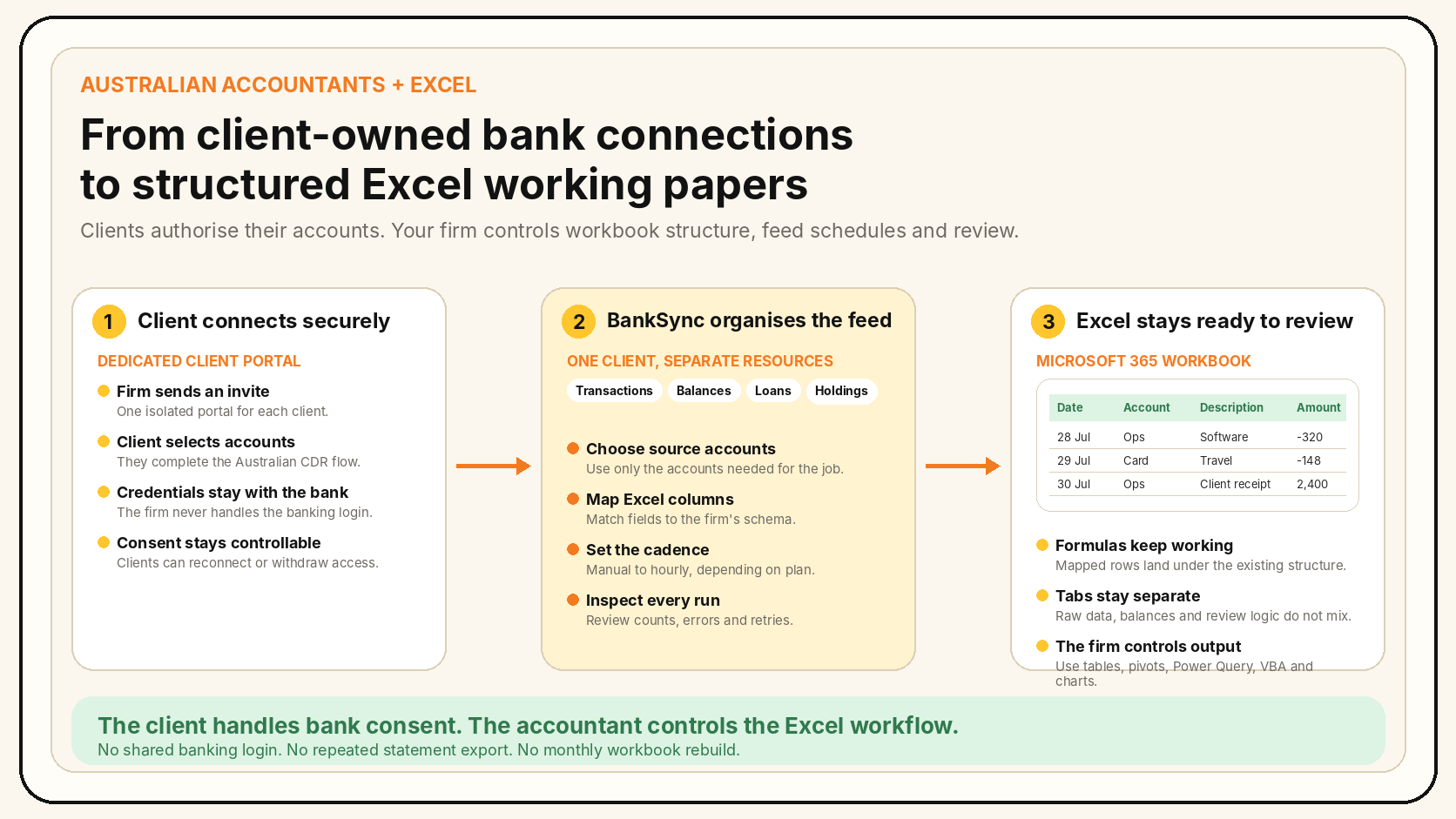
The client portal changes who handles bank authentication
A common source of friction is deciding who should connect the client's bank.
Sharing banking credentials with the accountant is not an appropriate operating model. Asking the client to repeatedly download statements is safer, but still creates a recurring administrative task and leaves the firm dependent on the client's file selection.
A BankSync client portal separates these responsibilities.
The firm creates a dedicated portal for the engagement and invites the client. The client signs in, sees only their own portal and completes the Australian Consumer Data Right consent flow with their institution. Once connected, the firm's owners and administrators can use those accounts as feed sources without a second invitation.
The client remains responsible for consent and reauthorisation. The firm manages the data workflow.
This also creates cleaner entity separation. Each portal has its own bank connections, members, feeds and integrations. A client does not see the firm's main workspace or any other client portal.
How the Excel connection works
BankSync writes to Excel workbooks stored in OneDrive or SharePoint through Microsoft 365 OAuth.
The workbook and worksheet are chosen inside the feed's destination settings. This means one firm-level Microsoft connection can support multiple feeds, while each feed targets the appropriate client workbook and tab.
A typical setup might use:
Client A Working Papers.xlsx→Raw Transactions;Client A Working Papers.xlsx→Balance History;Client B Monthly Review.xlsx→Bank Data; andPractice Cash Review.xlsx→ a worksheet fed from the firm's own accounts.
BankSync can create matching columns automatically, or the firm can map source fields into existing headers.
Recommended workbook architecture
The most dependable design keeps source data separate from review and reporting logic.
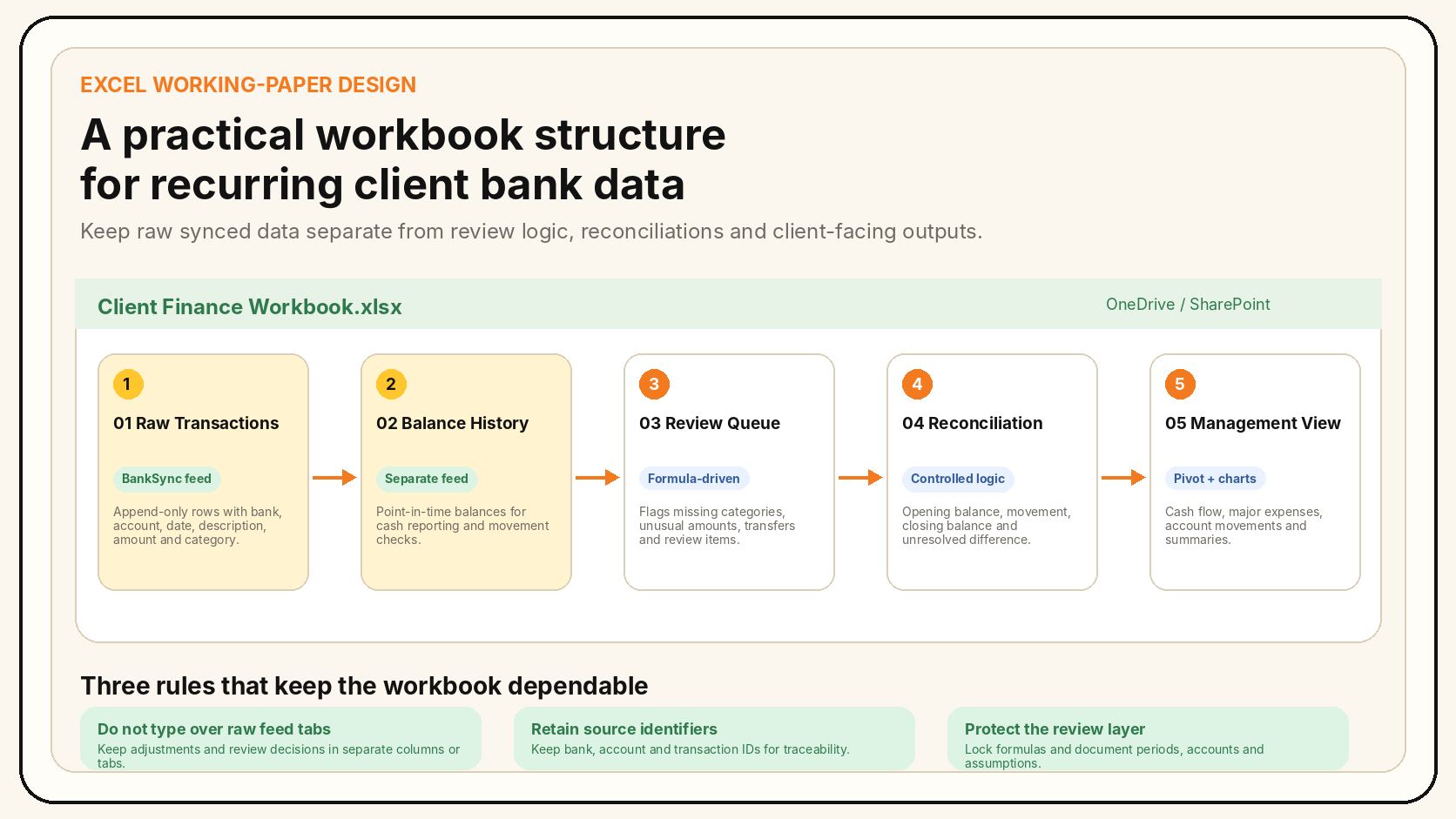
Recommended Excel tabs for recurring client bank data
| Worksheet | Purpose | Design principle |
|---|---|---|
| Raw Transactions | Append-only transaction feed from selected client accounts. | Do not type over synced rows. Retain source bank, account and transaction identifiers. |
| Balance History | Point-in-time balances appended on a separate cadence. | Keep balance snapshots separate from transaction-level detail. |
| Review Queue | Formula-driven flags for missing categories, large items, transfers and exceptions. | Reference raw tabs rather than editing them directly. |
| Reconciliation | Opening balance, movements, closing balance and unresolved differences. | Document the period, included accounts and treatment of transfers. |
| Management View | Pivots, charts, KPIs and client-facing summaries. | Build presentation outputs from controlled review tables, not directly from unreviewed rows. |
The exact workbook structure depends on the engagement, but separating source feeds from review logic makes refreshes easier to control.
What to map into Excel
The right field set depends on the working paper, but accounting firms usually need enough information to identify the source and trace a row back to the connected account.
For a transaction feed, useful fields often include:
- transaction date;
- description or merchant;
- amount;
- debit or credit direction where available;
- bank;
- account name;
- account identifier;
- transaction identifier;
- pending or posted status;
- category or enrichment fields; and
- the date the feed wrote the row.
When several accounts feed one worksheet, include both Bank and Account. Without those fields, the workbook may be numerically complete but operationally difficult to reconcile.
A balance feed should normally write to a different worksheet because balances are snapshots rather than individual movements. The firm can append each snapshot to create a balance history or maintain a current-state table, depending on the reporting purpose.
A six-step workflow for a new accounting client
From client invitation to reviewed workbook
Create an isolated client portal
Name the portal for the client or entity, configure whether the client can connect banks and invite the appropriate client contact as an Editor.
Let the client connect their accounts
The client accepts the invitation and completes the Australian CDR consent flow with the institution. Confirm that every account required for the engagement appears in the portal.
Connect the firm's Microsoft account
Authorise Microsoft Excel through OneDrive or SharePoint. The target workbook must be stored in Microsoft 365 rather than only on a local desktop drive.
Create separate feeds by data type
Create a transaction feed for raw movements and a separate balance feed where point-in-time cash information is needed. Select only the relevant client accounts.
Map the existing Excel schema
Match BankSync fields to the firm's workbook headers. Preserve identifiers and source fields needed for reconciliation and audit support.
Run, verify and schedule
Complete the initial backfill, check row counts and formulas, then choose an available schedule. Use job history to review subsequent runs and retry failures after fixing the cause.
Client-owned consent
Clients authenticate with their own institution and remain in control of the financial connection.
Isolated client workspaces
Each portal has separate banks, members, feeds and integrations rather than mixing clients in one shared workspace.
Excel-ready structure
Map the data into the columns and worksheets already used by the firm's formulas, pivots and review processes.
Repeatable refreshes
Run feeds manually or use weekly, daily or hourly schedules available on the selected plan.
Visible job history
Review processed and written records, run duration, errors, chunks and retry status.
One data layer, more outputs
The same client connection can later support dashboards, databases, APIs or approved AI workflows.
Where this workflow fits alongside accounting software
BankSync is not a general ledger and does not replace the professional judgement required for reconciliation, GST treatment, BAS preparation or financial reporting.
For some clients, Xero, MYOB, QuickBooks or another ledger will remain the system of record. Excel may be used for working papers, quality control, cash analysis, audit schedules, catch-up work or reporting outside the ledger.
The BankSync workflow is most useful when the firm needs a flexible data layer rather than another closed accounting interface.
Examples include:
- reviewing several client entities in a standard Excel template;
- building cash-flow and liquidity schedules from multiple bank accounts;
- creating supporting schedules for engagements where the ledger export is insufficient;
- preparing transaction populations for sampling or exception review;
- producing management reporting for clients without rebuilding the source data each month; and
- maintaining a controlled backlog workbook while historical records are reviewed.
Controls worth adding inside Excel
Automation should reduce repetitive work without hiding the source or removing review.
Useful workbook controls include:
- A last-refresh cell. Record the most recent successful sync time and compare it with the reporting period.
- A row-count check. Compare the number of imported rows with the BankSync job record.
- Account completeness. Maintain a list of expected accounts and flag any that are missing from the feed.
- Transfer logic. Identify likely inter-account transfers so they are not treated as external income or expenditure.
- Duplicate checks. Retain transaction identifiers and flag repeated IDs or suspiciously identical rows.
- Review status. Add controlled columns for reviewer, status, notes and final treatment rather than editing raw descriptions.
- Period locks. Protect completed review periods and formulas from accidental changes.
Practical limitations
The quality and history of CDR data depend on the institution, account type and information made available through the relevant provider. A scheduled feed is not a payment rail and should not be described as guaranteed real time.
Excel automation also requires the workbook to be accessible through OneDrive or SharePoint. A workbook stored only on a local drive cannot receive cloud-written rows through the Microsoft integration.
Microsoft OAuth access may expire or be revoked by an organisation administrator. Reauthorising the integration refreshes access without deleting existing workbook data or feed mappings.
Finally, a bank feed does not remove the need to verify completeness, classify transactions correctly or retain appropriate engagement records. It improves the source-data process; it does not automate professional accountability.
Frequently asked questions
Australian accountant Excel bank-feed FAQs
The bottom line
Australian accountants do not need to choose between manual client statement collection and abandoning their established Excel working papers.
The stronger operating model separates responsibilities:
- the client controls bank consent;
- BankSync maintains the structured data flow; and
- the accounting firm controls the Excel workbook, review logic and professional conclusions.
That removes repeated file handling without turning the workbook into a black box. The raw source remains visible, the firm can inspect every sync and Excel continues to support the formulas, reconciliations and judgement-based work that make the engagement valuable.