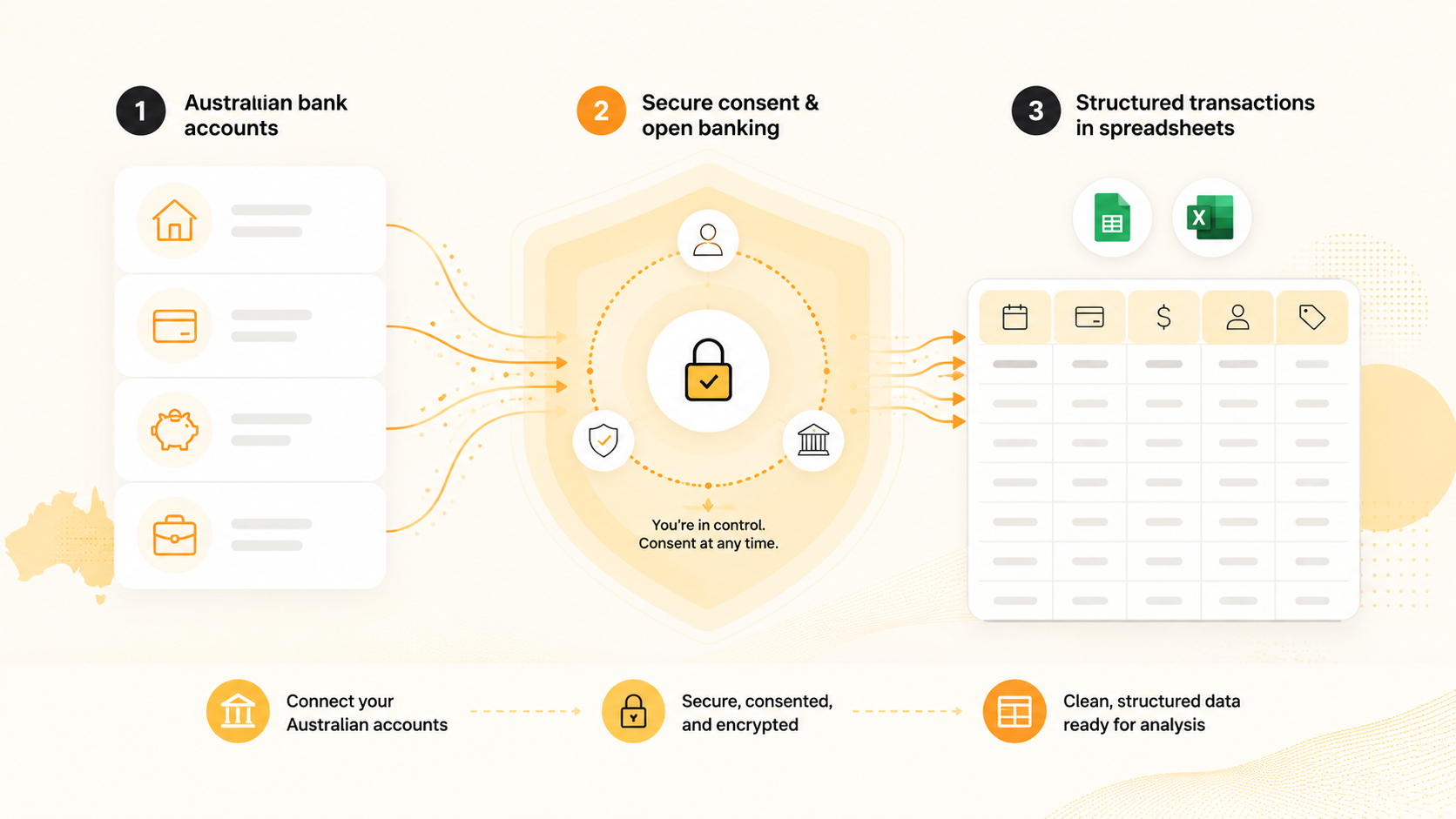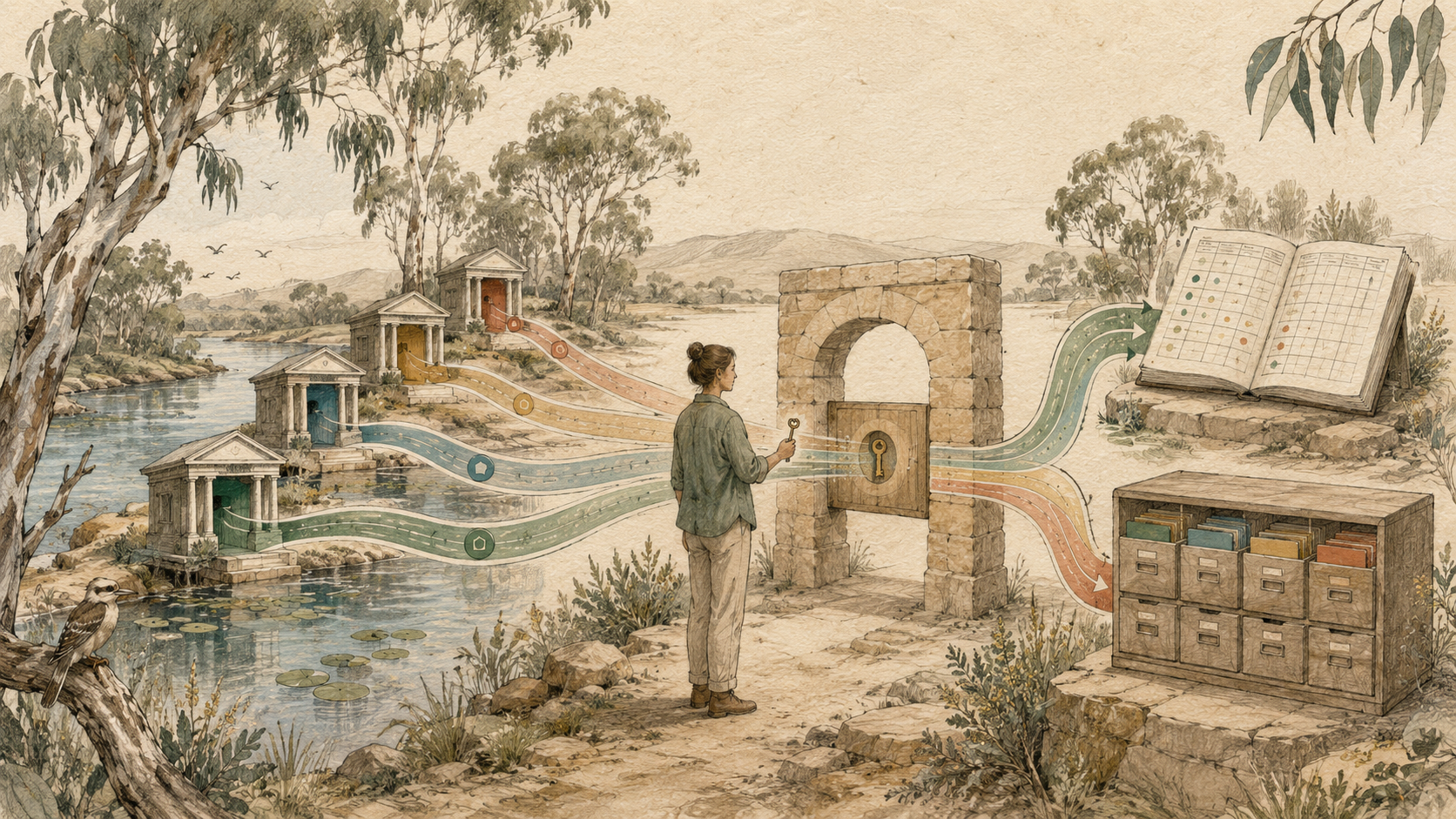
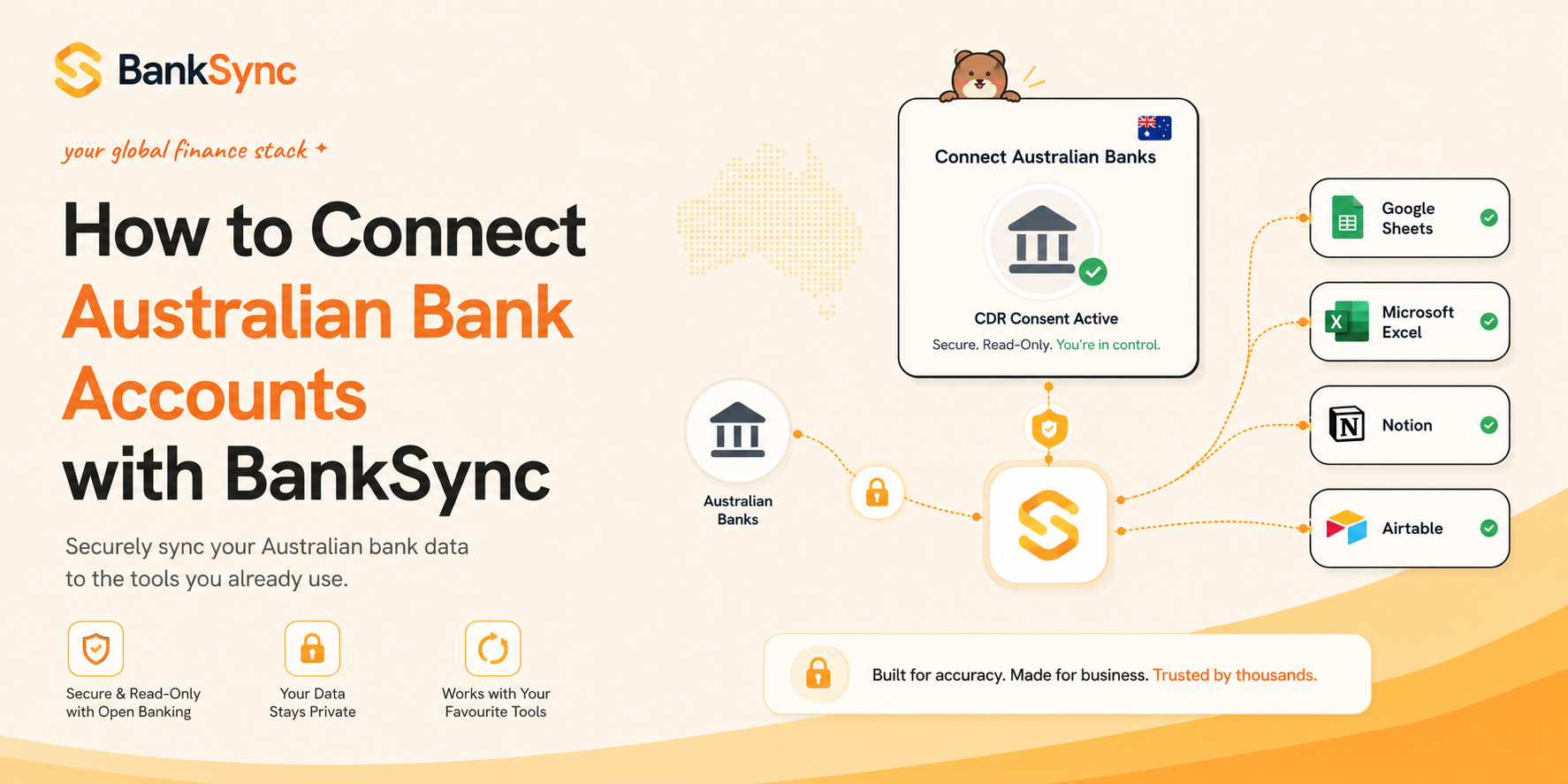
Three ways to get Australian bank transactions into a spreadsheet
| Feature | Manual CSV | Screen scraping | CDR bank feed |
|---|---|---|---|
| Automation | |||
| Credential handling | You download files | ||
| Best use | One-off analysis | Legacy workflows | |
| Maintenance |
Consent-based access
You choose the accounts, data and access period through the CDR flow.
Read-only connection
The connection is for data sharing, not payments or money movement.
Scheduled delivery
Transactions and supported account data can be sent to your spreadsheet on a recurring schedule.
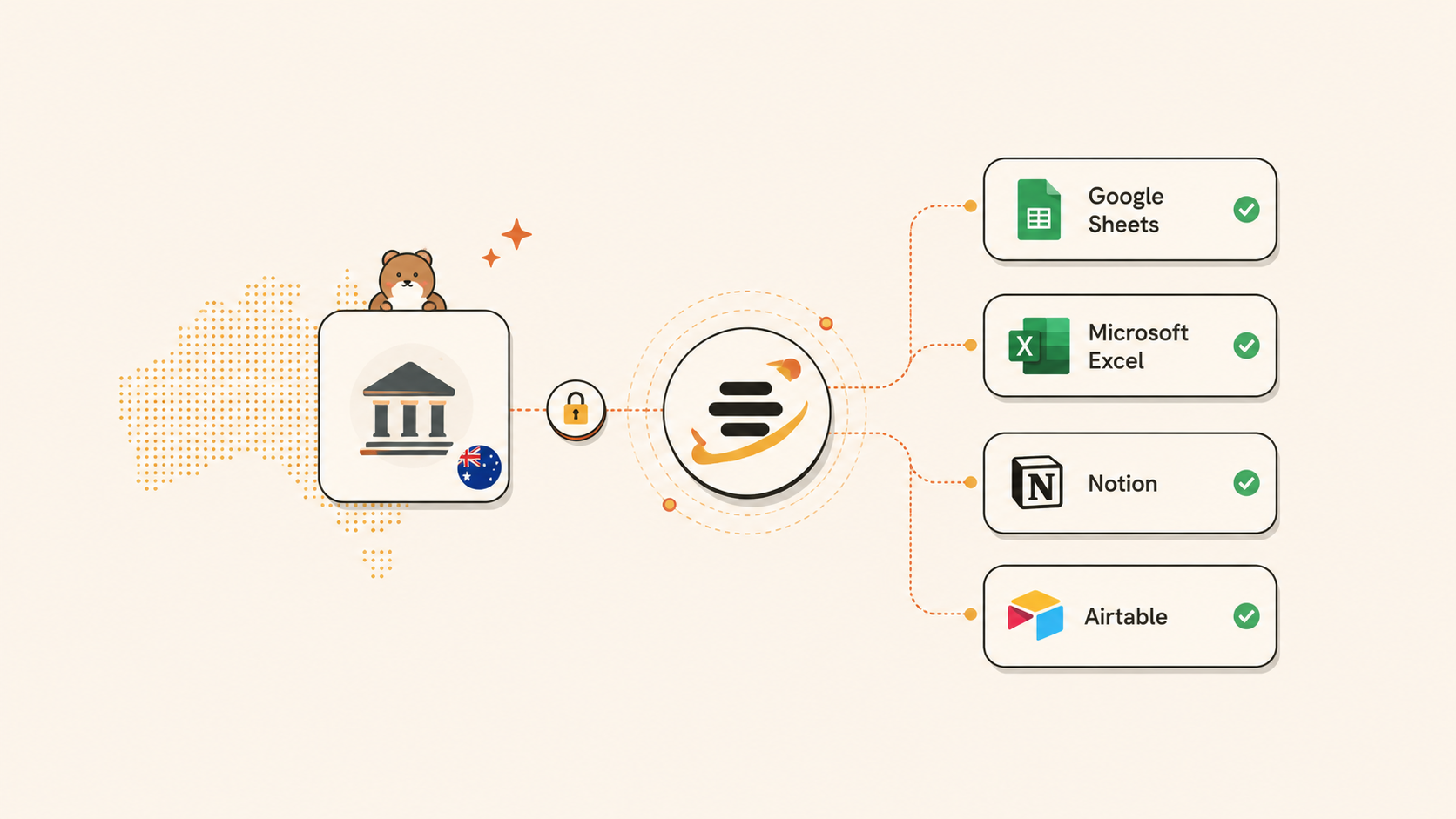
What CDR consent means in practice
Choose the accounts
Select only the eligible accounts needed for the workflow.
Approve the purpose
Review what data is requested and why it is needed.
Keep your banking password out of BankSync
Authentication occurs inside the secure bank or CDR flow.
Control the access period
Consent can be reviewed and withdrawn later.
Sync an Australian bank to Google Sheets or Excel
Create a BankSync workspace
Open the bank-connection area in the workspace that should own the feed.
Search for the exact institution
Personal, business and separately branded banking products may appear as different entries.
Complete the CDR consent flow
Review the requested data, choose accounts and authenticate through the secure bank flow.
Choose the destination
Select Google Sheets or an Excel workbook stored in OneDrive or SharePoint.
Map the bank fields
Match transaction ID, date, description, merchant, amount, category and account to your structure.
Choose a schedule
Daily suits most personal workflows; hourly or 15-minute schedules suit active cash-flow monitoring.
Inspect the first sync
Confirm history depth, signs, date formats, account labels and duplicate handling.
Google Sheets is strongest for
Browser access, sharing, lightweight formulas, collaborative review and simple dashboards.
Excel is strongest for
Power Query, pivot tables, detailed financial models, VBA, Office Scripts and larger datasets.
Recommended spreadsheet fields
| Field | Why it matters |
|---|---|
| Transaction ID | Prevents duplicates and supports reconciliation |
| Date | Powers monthly and financial-year reporting |
| Description | Preserves the original bank text |
| Merchant | Provides a cleaner reporting label |
| Amount | Keeps formulas consistent |
| Category | Drives budget and expense reporting |
| Account | Identifies the source when several banks feed one table |
| Notes | Keeps manual context separate from the bank feed |
Use one append-only transaction table as the source for reports and dashboards.
Raw transactions
One controlled table receives new bank data.
Rules and enrichment
Repeat merchants are categorised while uncertain items stay reviewable.
Reports and dashboards
Budgets, pivots and charts read from the raw table instead of receiving direct imports.
Frequently asked questions
Choose your next step
Check Australian coverage
Search for the exact institution and account product before building a critical workflow.
Connect to Google Sheets
Create a shareable transaction feed for budgets, reporting and review.
Connect to Excel
Feed a Microsoft 365 workbook for Power Query, pivots and models.