

Sync AMO to Firefly III
BankSync may support connections to AMO accounts through third-party open banking providers, then route the supported account data shown below to Firefly III. Setup takes about 5 minutes and requires no code.
How to sync AMO to Firefly III
Search for AMO in BankSync
Sign up for BankSync and, if AMO is available, link your account through a provider-hosted or bank-hosted authorization flow. BankSync does not store your online banking credentials.
Authorize Firefly III
Authorise BankSync to write data to your Firefly III workspace. Select the database, table, or sheet where the supported account data should land.
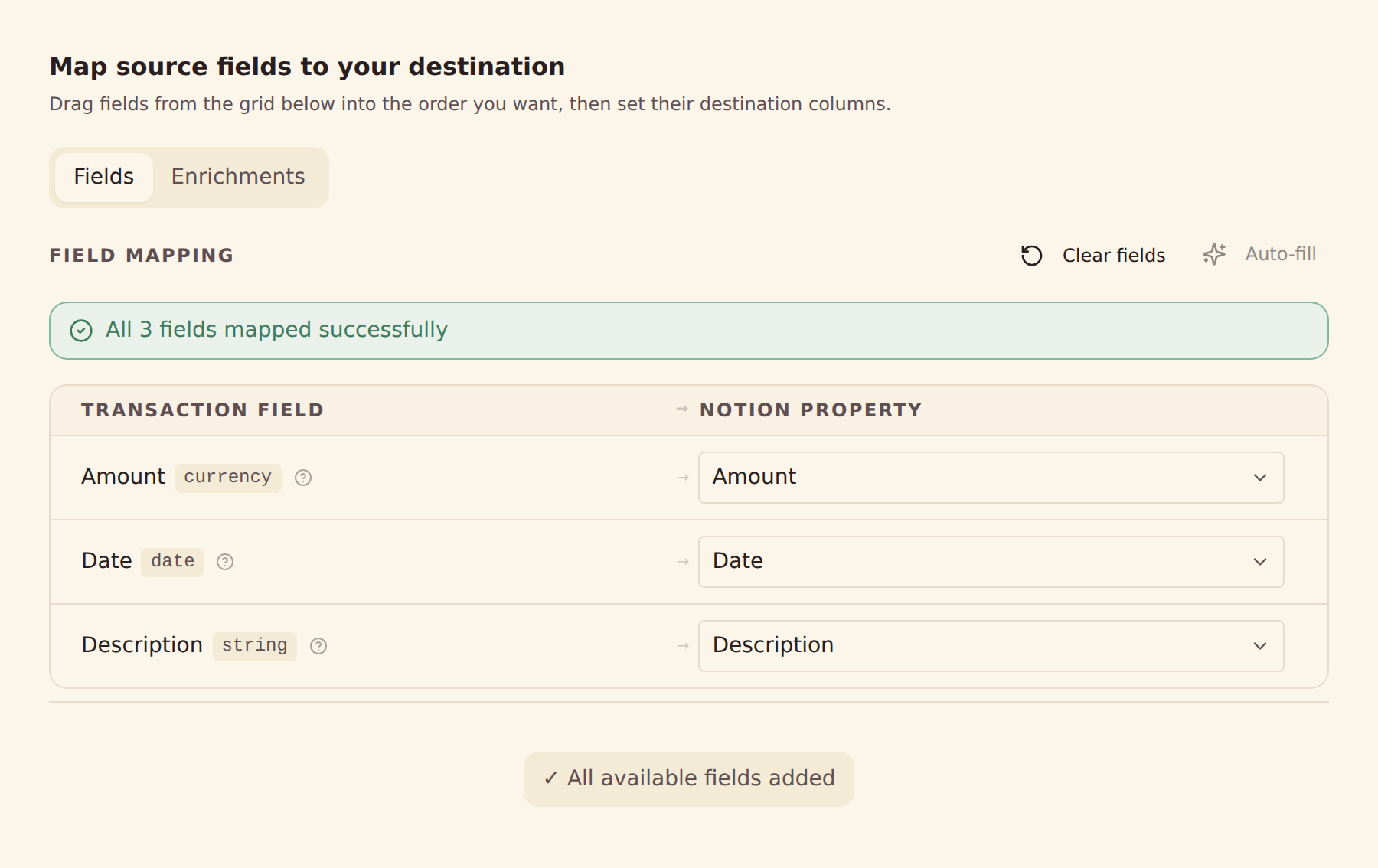
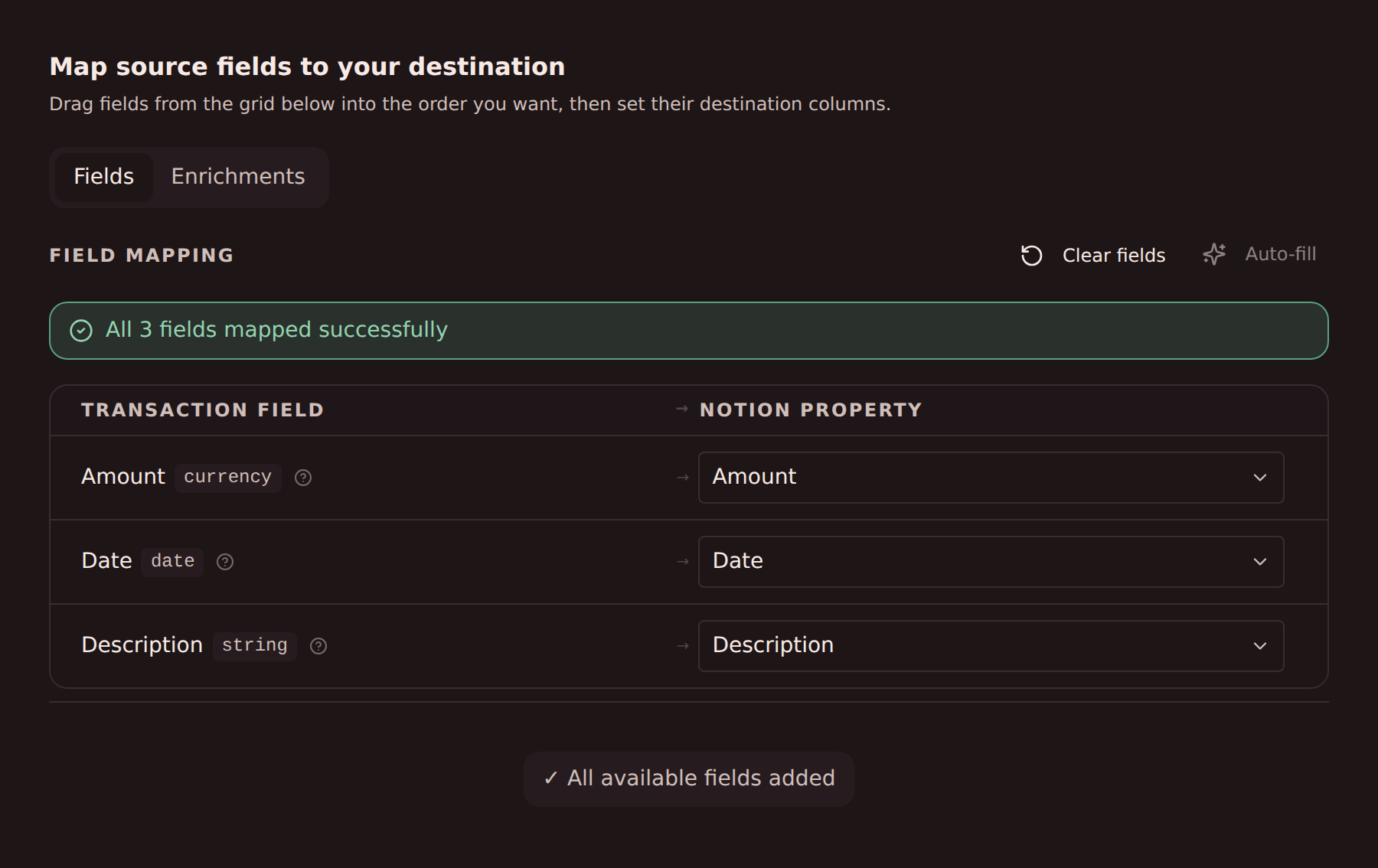
Configure field mappings
Map the supported AMO fields supplied by the provider to columns in Firefly III.
Set your sync schedule
Choose hourly, daily, or weekly automatic syncs based on your plan, or run a manual sync at any time.
What gets synced from AMO to Firefly III
Transactions
Sync available AMO transaction history and provider-supplied fields such as dates, amounts, descriptions, merchants, and categories.
Balances
Sync current and available balances for supported AMO accounts.
Account details
Use provider-supplied account names, masked identifiers, and types to organise data in Firefly III.
Custom field mappings
Map any AMO field to any column in Firefly III — fully configurable.
Sync schedules
Choose hourly, daily, or weekly automatic syncs based on your plan, or run a manual sync at any time.
Ready to sync AMO with Firefly III?
Start your 14-day free trial. Connect your bank, configure your sync, and have data flowing into Firefly III in minutes.
Get Started FreeSync AMO somewhere else
The same AMO connection can feed any of these destinations.
Other banks that sync to Firefly III
Institutions in the same market that can also route account data to Firefly III.
- Sync CommBank to Firefly III🇦🇺 Australia
- Sync Westpac to Firefly III🇦🇺 Australia
- Sync NATIONAL AUSTRALIA BANK to Firefly III🇦🇺 Australia
- Sync ANZ to Firefly III🇦🇺 Australia
- Sync Macquarie Bank Limited to Firefly III🇦🇺 Australia
- Sync ING BANK (Australia) Ltd to Firefly III🇦🇺 Australia
- Sync Up to Firefly III🇦🇺 Australia
- Sync Bankwest to Firefly III🇦🇺 Australia
BankSync is not affiliated with, endorsed by, or an official partner of AMO or Firefly III. All trademarks belong to their respective owners. Bank connections are established through regulated open banking providers.