
Getting Started with BankSync
Complete guide to setting up BankSync and syncing your financial data to Notion, Airtable, or Google Sheets.
4 min read
On this page
BankSync lets you automatically sync your banking data to tools like Google Sheets, Excel, Notion, and Airtable. This guide walks you through the complete setup process.
Your workspace is organized into tabs along the top: Feeds, Banks, Integrations, Enrichments, Clients, and Settings. You will spend most of your time in the first three.
Feeds
Your data sync configurations
Banks
Connected bank accounts
Integrations
Connected apps like Google Sheets, Excel, Notion, and Airtable
Enrichments
Sixteen processing steps that clean, categorize, guard and watch your data as it syncs
Sign in and recover your password#
Open the BankSync sign-in page and choose Continue with Google, or enter your email and choose Continue with email. For a password-based account, BankSync asks for your password: enter it and choose Sign in. An account linked to Google offers Continue with Google; use the same Google account you used to create your BankSync account. A new email address continues to Create your password instead, so the same page signs you up.
If your password is incorrect, choose Forgot password? beside the Password label. The control shows Sending…, then Password reset email sent. Please check your inbox. Follow the reset email's instructions before returning to sign in. The confirmation means the reset request succeeded; it does not mean your password has changed or you are signed in.
If sending fails, choose Forgot password? again to retry. If the email was sent but is missing, check your spam folder and the address you entered. Change beside your address lets you correct it. If BankSync offers Create your password for an address you have used before, check the address for a typo before creating a new account.
Email verification is separate: after a successful sign-in, Check your inbox means you must follow the verification link, then return and choose I've verified my email. Resend verification email does not reset your password.
If you still cannot sign in, use the contact page and give your account address. Never send your password or a reset link to support.

Quick Start Guide#
Get syncing in 3 steps
Connect Your Bank
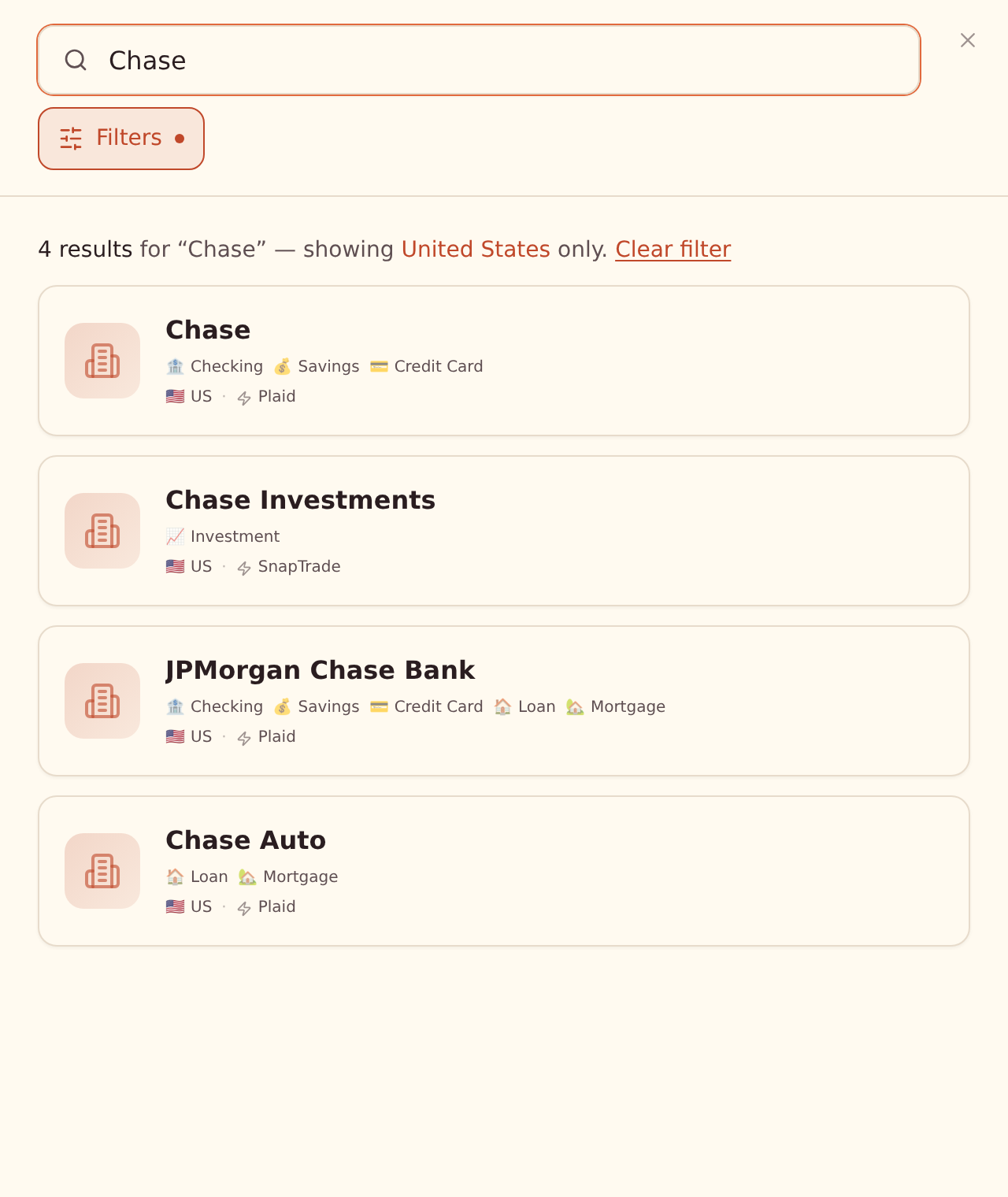
Go to the Banks tab and click "Add Bank". Select your region, search for your bank, and complete the secure authentication flow with your institution.
Add an Integration
Go to the Integrations tab and connect Google Sheets, Excel, Notion, or Airtable by completing the authorization flow.
Create a Feed
Go to the Feeds tab and click the + button. Configure your feed across its tabs: Overview, Sources, Destination, Mapping, and Schedule.
Bank connections start on the Starter plan
Auto-Save
What Can You Sync?#
Transactions
Individual transaction records from checking, savings, and credit card accounts
Balances
Account balance snapshots for net worth tracking over time
Trades
Investment transactions like buys, sells, and dividends from brokerage accounts
Holdings
Current portfolio positions including quantity, value, and cost basis
Loans
Loan and credit card data including balances, rates, and payment info
Creating a Feed#
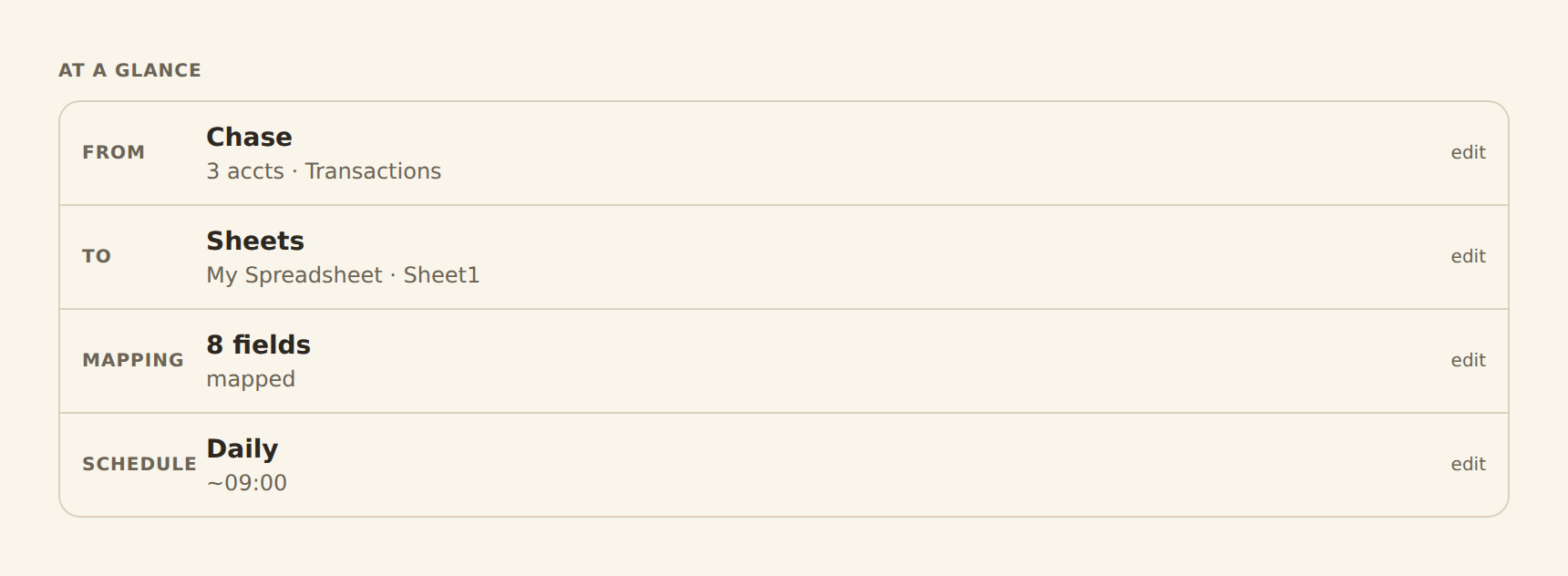
When you create or edit a feed, the editor is organized into five tabs:
Overview
A summary of the feed and its sync statusSources
Select which bank accounts to pull data fromDestination
Choose where to send the data (Google Sheets, Excel, Notion, Airtable, or a database)
Mapping
Map data fields to the columns or properties in your sheet, database, or table
Schedule
Optionally set up automatic Hourly, Daily, or Weekly syncs (or leave it Manual)
Sync cadence by plan

Running a Sync#
Once configured, you can run your sync in two ways:
Incremental Sync
Fetches only new data since your last sync. Fast and efficient for regular updates. This is the default option.
Date Range (Backfill)
Fetch historical data for a specific date range. Useful for initial setup or filling gaps in your data.
Security & Privacy#
Bank-Grade Security
- Read-only access: BankSync can only read your transaction data, never move money
- Credentials never stored: your bank login goes directly to your bank, not our servers
- Encrypted in transit and at rest: all data is protected with industry-standard encryption
Get Started Now
Related guides#
- Connecting banks: a detailed guide for connecting your financial institution, region by region.
- Google Sheets integration: connect and configure the most popular integration.
- Creating your first feed: the step-by-step walkthrough of your first data sync.
- Managing your plan: plan limits, usage meters, and billing.
Use this page with your AI assistant
Every BankSync doc is available as plain Markdown for agents and LLMs.