

You sent back a £96 coat and the retailer emailed to confirm the refund. A week later you spot a £64 credit. Is the return finished? In a Notion refund tracker, the two amounts sit side by side. You can see the £32 still to account for and open the retailer’s confirmation before getting in touch.
Start with one GBP account and one return. BankSync brings posted bank transactions into Notion. You enter what the retailer promised, then link each confirmed credit to its return. That last step matters when two purchases from the same shop cost the same amount.
One return, two credits
| What happened | Expected | Received to date | Still to account for |
|---|---|---|---|
| Retailer confirms a full refund | £96 | £0 | £96 |
| First credit posts to the card | £96 | £64 | £32 |
| Second credit posts to the same card | £96 | £96 | £0 |
These are illustrative amounts. The two credits belong to one return, so it needs one record. If you opened a second return for the second credit, you would lose sight of how much the retailer originally agreed to send.
Bring the original payment account into Notion
In BankSync, choose the UK institution and account you actually paid from. A purchase on a credit card belongs with that card’s transactions, even if you pay the card bill from a current account. A debit card purchase usually belongs with its current account. Verify that your particular bank and account type appear in the connection flow. Connect a UK bank
Set up the Transactions database
Choose a shared database
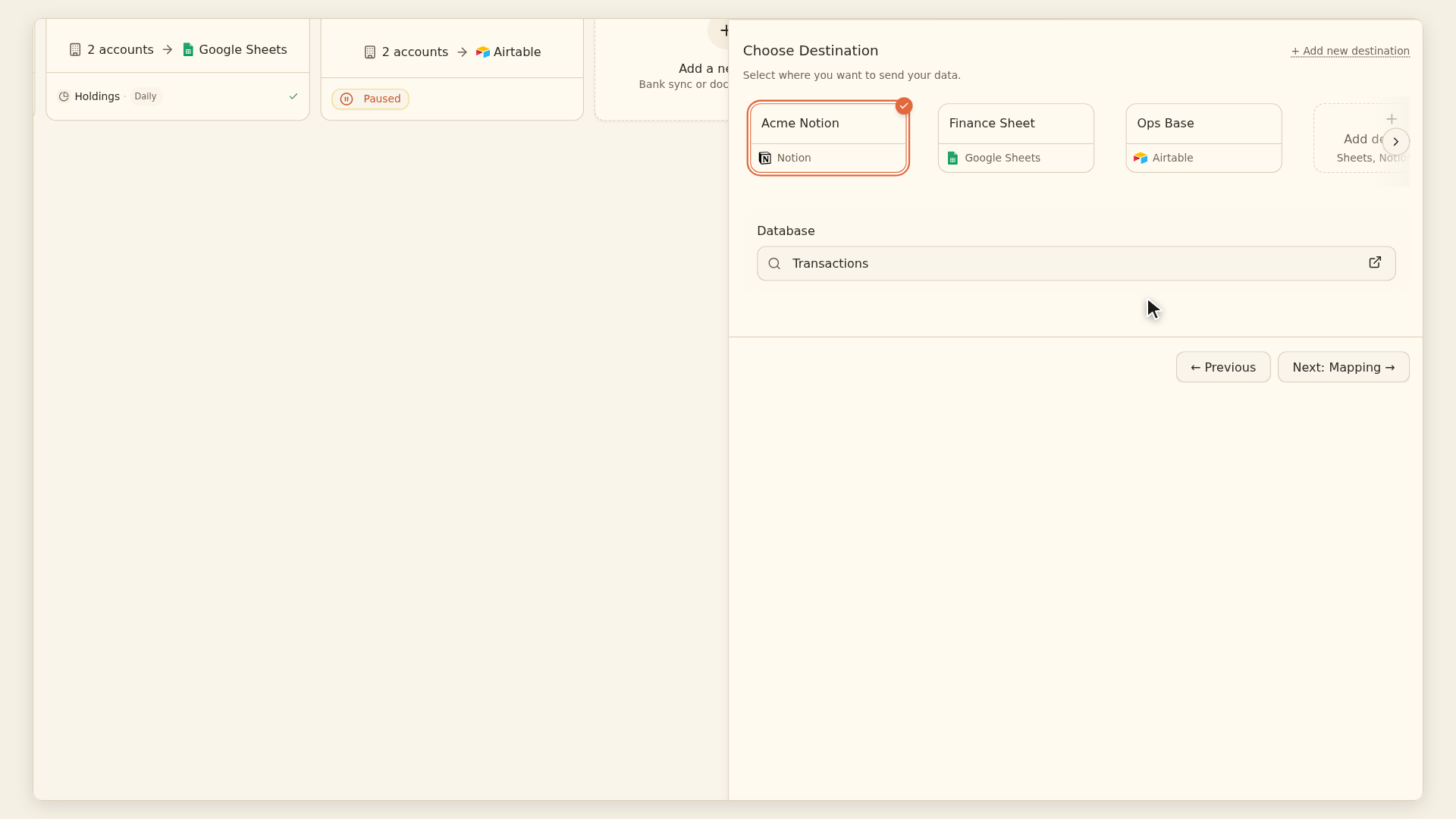
Create a Notion database named Transactions. In BankSync, connect Notion under Integrations and grant access to that database. Select it as the destination of a Transactions feed for the payment account.
Map the bank fields
Map Description to the title or a text property, Date to a Date property and Credit Amount to a Number property named Credit. Add Account and transaction ID so you can tell similar records apart. Format Credit in pounds for this GBP-only tracker.
Check a settled credit
Run the feed and find a known posted credit on the bank statement. Check the amount, direction and account in Notion. UK feeds normally filter out pending items. Choose a schedule available on your plan once the test agrees.
If the database is missing from the picker, open it in Notion and add the BankSync connection, or repeat authorisation and include that database. Notion connection guide · Transaction fields and pending entries
Give each return a page of its own
Create a second database called Returns. Use a title such as “Autumn coat · order 2048”. Save the order reference, expected refund in pounds, intended payment account and a follow-up date. Base that date on the merchant’s message or set your own reminder. Copy the confirmed figure from the email, which may differ from the order total when you return only one item.
Three properties that do the arithmetic
| Property in Returns | Type | How to set it up |
|---|---|---|
| Refund credits | Relation | Choose Transactions. Allow multiple linked pages so two credits can settle one return. |
| Received | Rollup | Choose Refund credits, then the Credit number property, then Sum. |
| Outstanding | Formula | Subtract Received from Expected, both numeric amounts in pounds. |
Name the expected-amount property Expected. In the formula editor, enter prop("Expected") - if(empty(prop("Received")), 0, prop("Received")). Add the two test credits from the example and check that Outstanding moves from £96 to £32 to £0. Keep a negative result visible so you can investigate an excess credit or a mistaken link. Notion relations and rollups · Formula reference
To match a real refund, check the account, retailer or payment description, return confirmation and posting date. Open the confirmed bank row from the Refund credits relation. A matching amount alone is weak evidence. When one bank credit covers multiple returns, group the items in one case with their order references and one combined expected amount, or record explicit allocations. Linking the full credit to each case would double-count it.
Make a view for returns worth chasing
Add a Select property named Resolution with options Open, Settled by credit, Reversal confirmed and Store credit. Start each cash-refund case as Open. Once the full credit is verified, set Resolution to Settled by credit. Create a Follow up view with three filters joined by AND: Resolution equals Open, Outstanding is greater than zero, and Follow-up date is on or before today. Sort by follow-up date, oldest first. Keep a separate unfiltered view for the full history. Notion views and filters
Treat a voucher as Store credit if that is what you agreed with the retailer. Keep its reference on the return. In both non-cash cases the Outstanding formula measures the amount without separate bank credits. Filter to Open when totalling cash still expected. How card reversals appear on a statement
At your next household review, open the oldest case. If a credit is missing in Notion, check the settled card statement and the feed’s latest completed run first. If the return is still open after the date you recorded, you have the order number, promised amount and amount received ready for one specific enquiry. Check a sync job
Product instructions and sources checked on 2 November 2026.