

Three invoices are due. A client sends one $6,050 bank transfer with the description “monthly payment”. Which invoice do you chase on Friday?
A Sydney design studio can account for every dollar of this deposit and still be owed $220 on a single invoice. Its bookkeeper needs three things to see that clearly: the posted bank credit, a list of invoices and the client’s remittance advice identifying how much they paid against each one. Here’s a Google Sheets setup you can reproduce with a single Australian business account. All figures are illustrative and in AUD.
What the client’s remittance advice explains
| Invoice | Amount due | From the $6,050 receipt | Still owing |
|---|---|---|---|
| ST-041 · brand workshop | $2,750 | $2,750 | $0 |
| ST-046 · website design | $2,200 | $2,200 | $0 |
| ST-052 · campaign artwork | $1,320 | $1,100 | $220 |
| Total | $6,270 | $6,050 | $220 |
The client’s email supplies the split. The bank can confirm the $6,050 deposit, but its description gives you no basis for assigning $1,100 to campaign artwork. Without a remittance, leave the receipt unallocated and ask which invoice numbers it covers. Picking the oldest invoices can lead you to chase a client who has already paid the one you’re asking about.
Bring the receiving account into Google Sheets
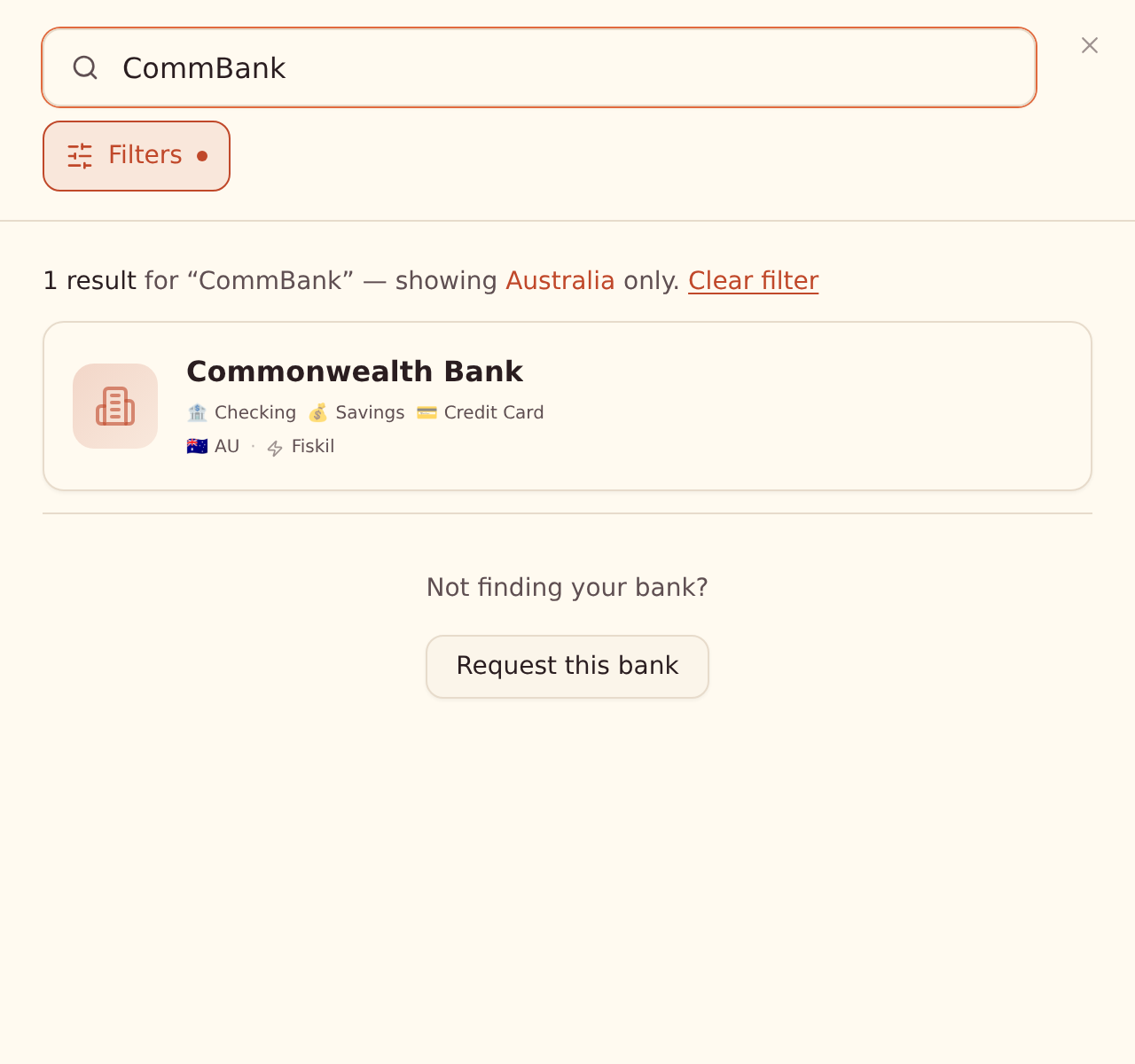
In BankSync, open Banks and search for your Australian institution. Choose the account the client pays into and complete the bank’s Consumer Data Right consent process. If the business account is missing, check who can authorise data sharing for the business. For example, ANZ explains that administrators of Internet Banking for Business can appoint a nominated representative. Each bank has its own procedure. Australian bank connection guide · ANZ business data sharing
Create four tabs in a Google spreadsheet: Bank, Invoices, Allocations and Deposits. In BankSync, connect Google Sheets under Integrations. Create a Transactions feed from the business account and choose the spreadsheet and its Bank tab as the destination. In Mapping, put Date in A, Description in B, Credit Amount in C and the bank transaction ID in D. Start headers on row 1 and the data on row 2. Run the feed, then compare a known posted client credit with your bank statement. Connect Google Sheets · Configure field mappings
Leave the Bank tab for incoming data. A single bank transaction stays on one row. The Allocations tab is where you can split that receipt several ways without creating extra bank deposits.
Give the incoming money a destination
List the invoices
On Invoices, use A for invoice number, B for amount due, C for due date, D for amount outstanding and E for client. Give each issued invoice a unique number across the register. In the example, enter ST-041, ST-046 and ST-052 in three separate rows.
Record what the client confirmed
On Allocations, use A for bank transaction ID, B for invoice number, C for allocated amount and D for the remittance reference. Copy the same bank ID into three rows for this deposit. Allocate $2,750, $2,200 and $1,100 respectively, as the remittance directs. Keep amounts numeric.
Check the deposit once
On Deposits, use A for bank transaction ID, B for posted credit and C for unallocated cash. Enter the ID once per receipt. The repeated ID on Allocations describes three uses of the one deposit. A repeated ID on Deposits would count the same cash twice.
Calculate what remains on each side
In Invoices!D2, enter =IF(A2="","",ROUND(B2-SUMIF(Allocations!B$2:B,A2,Allocations!C$2:C),2)). Copy down. This subtracts all allocations carrying that invoice number. A second payment against ST-052 can therefore settle its remaining $220 later without changing the original receipt. Google Sheets SUMIF
In Deposits!B2, enter =IF(OR(A2="",COUNTIF(Bank!D$2:D,A2)<>1),"",SUMIF(Bank!D$2:D,A2,Bank!C$2:C)). This returns the posted credit only when the bank ID appears exactly once in the Bank tab. Investigate a blank result for a populated ID. A missing bank row and a duplicated import both need attention. Google Sheets COUNTIF
In Deposits!C2, enter =IF(B2="","",ROUND(B2-SUMIF(Allocations!A$2:A,A2,Allocations!C$2:C),2)). Copy the deposit formulas down. For this example, C2 returns $0 while the invoice tracker shows $220 against ST-052. You now have the exact balance to discuss with the client.
Read these two balances before contacting a client
| Unallocated deposit | Outstanding on invoice | What to do |
|---|---|---|
| $0 | $220 on ST-052 | All received cash is explained. Check the due date and any agreed adjustment before following up on the $220. |
| $6,050 | All three open | The deposit has arrived. Ask for the remittance before sending individual overdue reminders. |
| −$220 | All three show paid | You have allocated $6,270 against a $6,050 deposit. Correct the allocations against the remittance. |
| Above $0 | All confirmed invoices settled | Hold the excess for review. Ask whether it is an advance, an overpayment or relates to another invoice. |
Turn Friday’s review into a short, accurate follow-up
Check the last successful bank sync and clear unknown receipts first. Then filter Invoices to positive outstanding amounts where the due date has passed. Before contacting that client, check the invoice number, payment terms and any credit note or dispute. For the studio, a precise question is “We’ve applied $1,100 to ST-052. Can you confirm how you’d like to handle the remaining $220?” Australian Government invoicing guide
A final check for the bookkeeper: every allocation should point to one real invoice for that client and one verified deposit. Filter Allocations by a payment ID to explain a deposit, or by an invoice number to explain a balance. If a bank connection is re-established after Australian consent ends, check for overlapping historical rows before relying on the new totals. BankSync’s Australian consent and reconnection guidance
Product instructions and sources checked on 2 November 2026.