

You can pay a supplier from the company account, yet the account disappears the moment you try to connect it to a spreadsheet. Start with the last screen where you could see it. If it is missing from the bank’s sharing screen, changing Excel columns will do nothing. If it is visible in BankSync, you can go straight to the feed checks below.
This is a common enough question for CommBank to address it explicitly in its Open Banking FAQ. For a bookkeeper onboarding a client, the quickest first question is simply: “When you sign in for the business, which banking service do you open?”
Where does the account disappear?
| Last place you saw it | What to check next |
|---|---|
| In everyday online banking only | Identify the banking service, the legal account holder and who can authorise data sharing for that holder. |
| On the bank’s sharing screen | Check that the correct business account was selected and that the consent completed. Compare the bank and account in BankSync. |
| In BankSync, under Banks | Open the feed. Check its source account, destination file or tab and latest sync job. |
| In the spreadsheet, but yesterday’s payment is missing | Compare a known posted transaction and its date. A fast schedule cannot make the bank expose fresher data. |
Check the bank entrance first
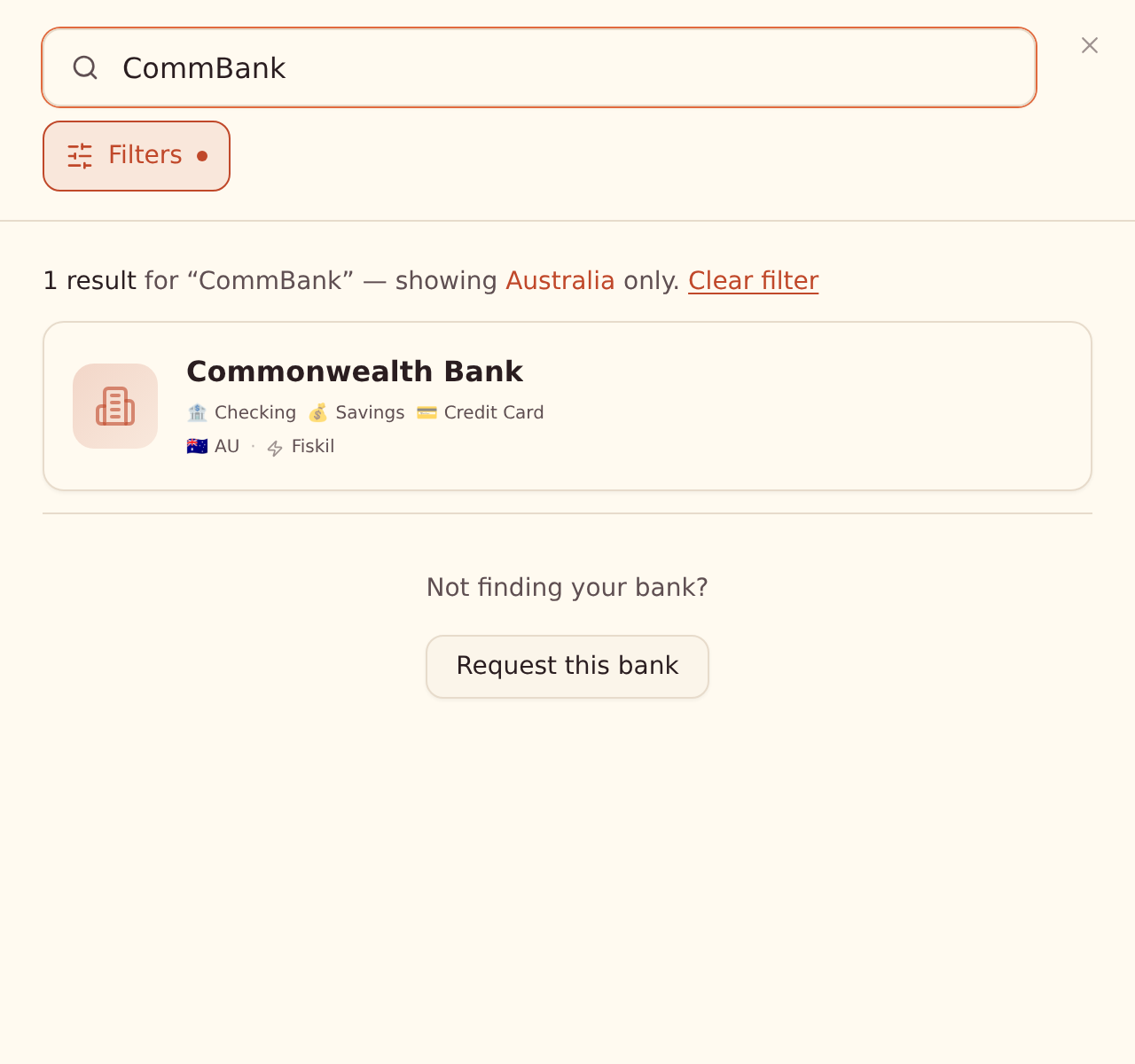
At CommBank, a client who uses CommBiz for the company and NetBank personally has two possible starting points. BankSync lists CommBiz and personal CommBank separately. Search for the service that actually holds the business account. A successful personal login can be perfectly valid and still leave the company account out of view.
NAB illustrates a different situation. NAB says its CDR sharing uses NAB Internet Banking. A business that only uses NAB Connect needs to register for Internet Banking to use that sharing service. Follow the bank’s current instructions before starting another consent. BankSync Australian bank guide · NAB Open Banking
Check who can share the company’s data
For a company or partnership, the Australian CDR guidance calls the individual authorised to share its data a nominated representative. Holding a job title, being a bookkeeper or already operating the account does not by itself establish that nomination. At CommBank the corresponding bank term is data sharing delegate. Its instructions differ for NetBank and CommBiz.
For a sole trader, check how the account is held. An account held in the individual’s capacity follows the individual process. A business account held by a non-individual follows the representative process. Ask the bank if the account’s legal owner or product eligibility is unclear. CDR nominated representatives fact sheet · CommBank delegate setup
Follow one account from the bank to the workbook
Suppose a design company sees its owner’s personal account at setup. Its bookkeeper needs the studio operating account. The owner confirms the account is in CommBiz and uses the company’s authorised sharing route. The bookkeeper can now use one posted supplier payment to prove that the correct account reached the correct working paper.
A five-minute acceptance check
Select the intended accounts
In the bank’s consent window, choose only the eligible accounts the business intends to share. Complete the return to BankSync.
Verify the source
Under Banks, find the intended account. Compare its label and one recent posted amount with the client’s source record.
Verify the delivery
Select that account in the transaction feed. Check the destination workbook and tab. Run a sync and inspect its job result.
Prove the row landed
If the studio’s statement shows a posted A$187.40 supplier debit, find the corresponding debit on the intended tab. A successful job for another account does not prove this one was included.
When the account used to work
Open the connection and check whether it needs re-authentication. Australian re-consent can prompt you to select accounts again. Include every account that should still be shared. BankSync’s documentation says that, when consent ends, it pauses feeds that read only from that bank. After reconnection, check each affected feed and re-enable auto-sync where appropriate.
For a firm managing several businesses, send the bank request through the correct client workspace. A BankSync Editor role lets someone operate the portal’s connection flow. The bank separately decides who can authorise the business account. Managing Australian CDR consents · BankSync client setup
If you need help, record the bank and banking service, account type, last successful stage, approximate time and visible error text. That gives the bank or BankSync support something to investigate. Keep login codes and full account numbers out of the support note.
Once the first row checks out, follow the Australian bank-to-spreadsheet guide or the Excel workflow for Australian accounting firms.
Bank and product instructions reviewed 2 November 2026. The studio and its payment are illustrative.