

A card payment is visible in your banking app, but it is missing from your Excel tracker. Before reconnecting everything or importing another CSV, find the point where the record stopped.
A bank app, a banking provider, a BankSync feed and an Excel worksheet are separate stages. A record can exist in one stage before it is available in the next. This guide gives you a six-check investigation that protects the rows you already have.
The useful result: either you find the transaction, identify a documented reason to wait, or collect a precise support case. You do not need to rebuild the workbook to do that.
Product behaviour reviewed against the linked documentation on 1 November 2026. Examples are illustrative.
Follow the record
| Stage | Question | Evidence to keep |
|---|---|---|
| Bank | Is it posted or still pending? | Account, date, amount and status |
| Connection | Is consent valid for this exact account? | Connected account and expiry |
| Feed | Does this feed include the record? | Source scope, start date and run result |
| Excel | Are you looking at the selected destination? | Microsoft account, workbook and worksheet |
1. Check pending status before changing anything
BankSync's UK bank guide explains that pending transactions may remain pending through the provider for days, even when the bank app appears to show them as completed. UK transaction feeds exclude pending records by default.
For example, a £42 restaurant payment might be visible in the banking app on Monday but absent from a posted-only feed. That is not enough evidence to call it a failed Excel delivery.
Record the status and check again after the transaction posts through the provider. Do not assume that changing the spreadsheet date filter will make an unavailable source record appear.
2. Confirm the exact account and consent
A banking brand can expose different personal and business connections. Compare the connected account identity with the account that made the payment; a familiar bank name alone is not enough.
Check whether consent needs renewal and follow the expiry shown in your connection. Also check that the account was included in the bank's consent selection. Do not reconnect a different legal entity simply because its name looks similar.
BankSync uses Salt Edge for the documented UK connection flow. Support depends on the bank, connection and account type; do not infer that every account offered by a bank must be available.
3. Inspect the feed scope
Find the owning feed
Identify the transaction feed intended to write this account to this worksheet.
Check account selection
Confirm that the source account is included and that you are not viewing a balance-only feed.
Check the date boundary
Compare the transaction date with the feed's configured start date and available bank history.
Read the last run result
Separate a source-fetch problem from a destination-write problem before changing settings.
Initial history is not unlimited. The UK documentation describes approximately 60 days of history for these connections. A transaction from last year may require a bank-exported historical file rather than another live sync.
The transaction sync guide explains incremental delivery and pending-record behaviour. Use an ordinary sync to investigate current delivery; restarting from the beginning can re-deliver records to a spreadsheet.
4. Verify the Microsoft destination
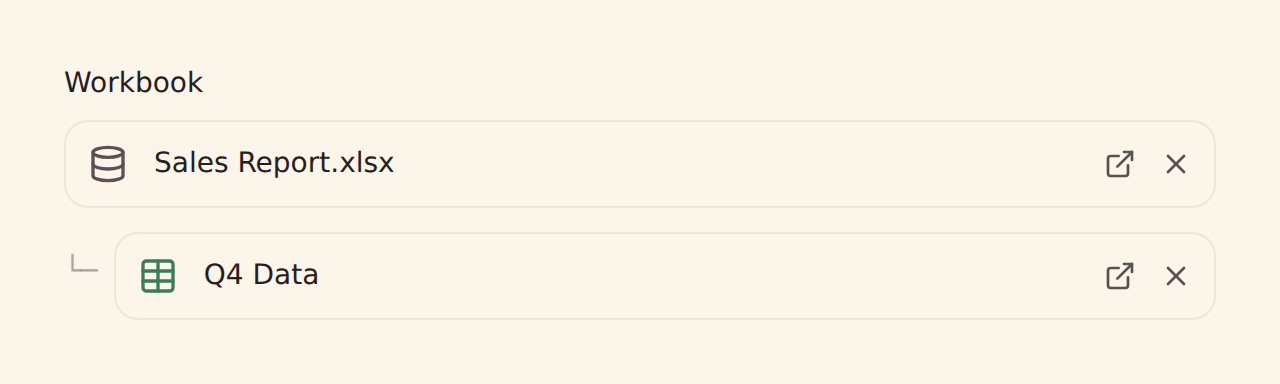
Open the feed's destination settings and check the Microsoft account, OneDrive workbook and worksheet. A similarly named file in another folder or account can make a successful delivery look like missing data.
Clear ordinary Excel filters temporarily and search by amount and description as well as date. A date stored as text, a hidden row or a category filter can hide a record from your report even though it is present in the raw data.
The Excel integration guide documents the connection, workbook selection and mapping flow. If Microsoft authorisation has expired, reconnect the integration through the documented flow; BankSync says existing feeds, mapping and rows are preserved.
5. Separate missing data from missing fields
A transaction with a blank merchant or category is different from a missing transaction. Search the raw worksheet before concluding that the row never arrived.
Keep date, amount, account, currency and description available where the source supplies them. Map status and a source identifier when available. These fields help distinguish a row that needs categorisation from one that has not been delivered.
Do not use a blank category as the sole filter for whether a payment belongs in your cash movement total. Classification can be incomplete while the movement is real.
6. Choose the smallest next action
| Finding | Next action | Avoid |
|---|---|---|
| Still pending through provider | Wait or design a separate pending review | Counting pending and posted as two expenses |
| Consent expired | Renew the correct connection | Adding an overlapping replacement feed |
| Outside available history | Plan a bounded historical import | Repeatedly restarting the live feed |
| Wrong workbook or worksheet | Correct the destination after checking existing rows | Writing to two destinations by accident |
| Row exists but report misses it | Repair filters, types or report range | Importing another copy |
| Run failed with a repeatable error | Keep the error and contact support | Sharing tokens or unrestricted bank statements |
Make a support case easy to resolve
Record the relevant feed, destination, last successful run, failing run time and the smallest example needed to explain the problem. Note whether other transactions from the same account arrived.
Use a redacted description and amount only where necessary. Keep passwords, consent secrets and SimpleFIN tokens out of screenshots and public messages. A good report says “this account's posted record is absent from this feed after this run,” rather than “Excel is broken.”
Once the issue is resolved, check the affected period against the bank's own statement or transaction list. A successful run proves the run completed; it does not by itself prove your reporting period is complete.