
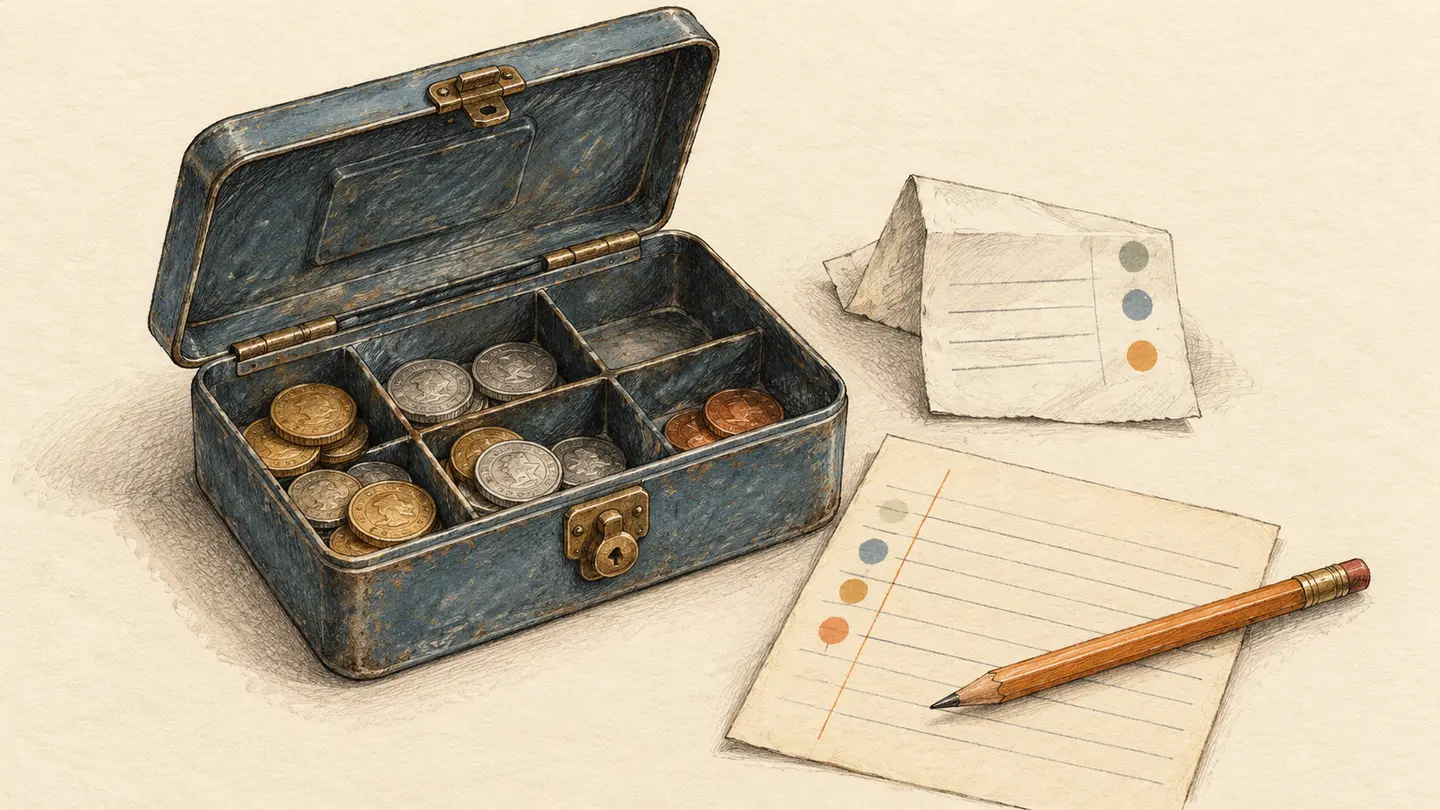
On Friday, the cash tin at a suburban stationery shop holds A$124.50. It opened with A$75, the owner added A$100 from the shop’s business transaction account, and two receipts account for A$49. There should be A$126 in the tin. The useful number to take into the weekend is A$1.50 short.
Your bank can tell you when the A$100 left the account. Someone in the shop has to count what reached the tin and what is still there. Give those observations a home alongside the bank feed and you can trace a difference without changing a single bank transaction.
One week in a shop’s cash tin
| Entry | Effect on the tin | Evidence |
|---|---|---|
| Opening cash | A$75.00 | Previous physical count |
| Cash top-up | +A$100.00 | Posted A$100 cash withdrawal and a note confirming the tin received it |
| Packing supplies | −A$36.40 | Cash receipt |
| Local delivery | −A$12.60 | Cash receipt |
| Expected close | A$126.00 | A$75 + A$100 − A$36.40 − A$12.60 |
| Counted close | A$124.50 | Notes and coins counted on Friday |
| Difference | −A$1.50 | Counted close less expected close |
Set up a row for every cash count
This example is for one AUD tin used to pay for small purchases. The shop has no cash sales, bank deposits from the tin or cash refunds in the example week. If yours does, record those movements separately before calculating expected cash. Put a cut-off time and location on each count so a late receipt cannot quietly move between weeks.
In a BankSync workspace with Tables enabled, use an existing Transactions table and Receipts table if you already have them. Add one custom table called Cash counts. Choosing a BankSync Table as a destination stores those records in the workspace. Tables are in beta and enabled per workspace. Table setup and availability
Set up the three tables
Transactions holds bank evidence
Connect the eligible Australian business transaction account through the bank’s CDR authorisation flow, create a Transactions feed and select BankSync Table as its destination. Use the typed Transactions table and normal Upsert mode. Keep posted withdrawals in scope. Add a custom numeric field called Cash delivered for the amount physically put in this tin.
Receipts holds purchase evidence
Create a Document Extractor feed for receipts and send one row per receipt to the matching Receipts table. Upload a receipt or forward its attachment. Check the extracted merchant, total and currency against the original, then confirm the purchase was paid from this tin. Add a positive numeric field called Cash paid for the portion paid from petty cash.
Cash counts holds the physical count
Create a custom table with a row such as Shop tin · week ending Friday. Add a period start and end, Opening cash, Counted close, a reviewer and a Status field. Record the physical count even when it differs from the amount expected.
Business-account sharing depends on the bank and your authority to share that specific account. If the account is missing during consent, check its CDR sharing arrangements with the bank. Australian CDR data typically refreshes roughly daily, so an afternoon withdrawal may show up after you have counted the tin. Keep the top-up slip and mark it for linking once the posted bank row arrives. Pick a known withdrawal and one familiar receipt, then inspect the destination rows before scheduling the feeds. Australian business bank connection · Table destinations · Document Extractor
Link both kinds of evidence to the same week
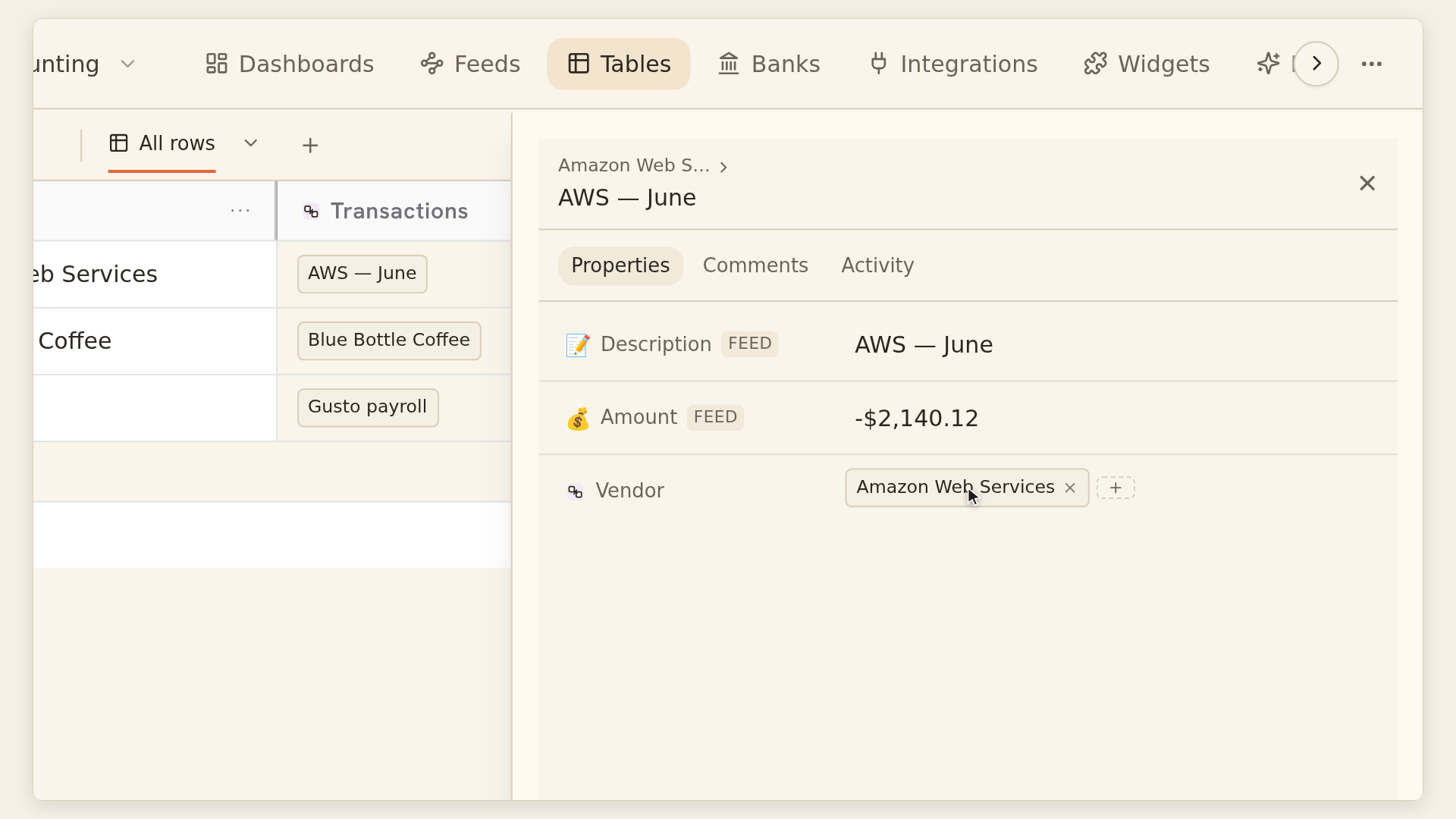
From Cash counts, use + → Relation to add Top-ups pointing to Transactions, and Cash receipts pointing to Receipts. Choose No limit on the count side so one count can have several entries. Turn on the reciprocal field if the shop manager wants to open the count from a receipt or withdrawal. All three tables must share a workspace.
Select the records yourself. Link the A$100 withdrawal to Friday’s count and enter A$100 in Cash delivered once the person who filled the tin confirms it. Link both receipts to the same count and enter A$36.40 and A$12.60 in Cash paid. The person reviewing the A$100 can now see which week it funded without suggesting that one withdrawal paid a particular bill. BankSync relation settings
An A$20 lunch paid on the company card stays outside Cash receipts even if someone photographed it alongside the till receipts. If A$8 of an A$20 receipt came from the tin and A$12 came from a card, enter A$8 in Cash paid and leave the document total at A$20. Use a separate allocation record if the same withdrawal was divided across several tins. Entering its full value against each tin would inflate every close.
Calculate expected cash and investigate the gap
In Cash counts, add Cash in as a Sum rollup of Cash delivered through Top-ups. Add Cash out as a Sum rollup of Cash paid through Cash receipts. Both store positive magnitudes. A documented bank fee stays outside Cash delivered. An empty numeric rollup can be blank, so check whether it represents a quiet week or a missing link before you close the count. Rollup behaviour
{Opening cash} + coalesce({Cash in}, 0) - coalesce({Cash out}, 0)
Save that Formula field as Expected close. Add a second Formula field, Difference, with {Counted close} - {Expected close}. Read it only after the physical count is entered. In the example, −A$1.50 calls for a recount and a check for change, an unfiled voucher or an item recorded in the wrong week. A positive difference calls for the same inspection. BankSync formula reference
Put unresolved counts on the dashboard
Give each count a status such as Counting, Investigate or Closed. Add a table widget using Cash counts as its source and filter it to Investigate. Show the tin, closing date, counted cash, difference and reviewer. A KPI counting those same filtered rows answers how many counts need action. Open the table to find the owner of this week’s A$1.50. Adding positive and negative differences into one KPI can hide two unresolved counts that cancel each other out. Building widgets on a table
If Automations is enabled for your workspace, the Post to a thread when a status changes template can post a note on the count row when its status changes to Investigate. Test the trigger with a sample row, publish the automation, approve its grant and activate it. This step is optional. Staff can work from the filtered list with the same evidence. Automation templates
At the next count
Product instructions and sources checked on 2 November 2026.