

A £48 card payment is easy to spot. Finding the receipt, remembering what it bought, and deciding whether it belongs in this week's cash review takes longer. Connect those pieces once and the next review starts with the exceptions.
This guide builds a small-business cash-flow workspace with a Transactions table, a Receipts table, and a relation between them. The bank feed supplies cash movements; documents supply purchase evidence; widgets show the questions that still need attention. The example uses GBP and a UK business account, but the model works with other supported accounts too.
The three questions your review should answer
| Question | Source | Useful output |
|---|---|---|
| What cash moved? | Posted bank transactions | Weekly money in and money out |
| What supports this purchase? | A reviewed receipt linked to its payment | Merchant, document total and evidence |
| What needs a decision? | Receipt count plus a review status | Payments with missing or disputed evidence |
Start with two separate sources of truth
A bank transaction proves that money moved. A receipt describes a purchase. They are related, but they are not interchangeable: one payment may cover several receipts, a receipt may be paid in instalments, and a cash purchase may have no matching bank transaction.
Keep one row per source record. Do not paste every receipt total into your transaction ledger as a new expense. Doing that would count the same purchase twice. For the cash-flow report, sum the bank movements; use receipts as supporting records.
Bring posted UK transactions into a table
Follow the UK bank connection guide. Search for the exact banking entity, including its business variant where relevant, and approve only the accounts you intend to use. Confirm those accounts appear before configuring the feed.
Create a Transactions feed and choose BankSync Table in Destination. Create a typed Transactions table or choose an existing matching table. Typed fields map automatically; retain the source identity and use the normal Upsert mode. Add your own review fields separately from the bank-supplied fields.
Keep posted-only handling for this review. For UK connections, opting into pending entries can introduce a separate row when the final transaction posts; the original pending row is not removed automatically. The transaction guide explains this distinction.
Build the receipt side
Create a receipt extractor
From Feeds, create a Document Extractor for receipts. Choose a matching Receipts table as its destination and review the extracted-field mapping.
Submit one clear document
Use Manual Upload in Sources or forward an attachment to that extractor’s mailbox address. Start with one known receipt before adding forwarding rules.
Verify the extracted values
Compare merchant, purchase date, currency and total with the original. Extraction helps with entry; it does not establish that the document is correct.
Add review fields
Use a status such as Needs review, Checked or Query, plus a note explaining any mismatch. Keep a document link or attachment so the evidence stays easy to open.
Link the receipt to the payment
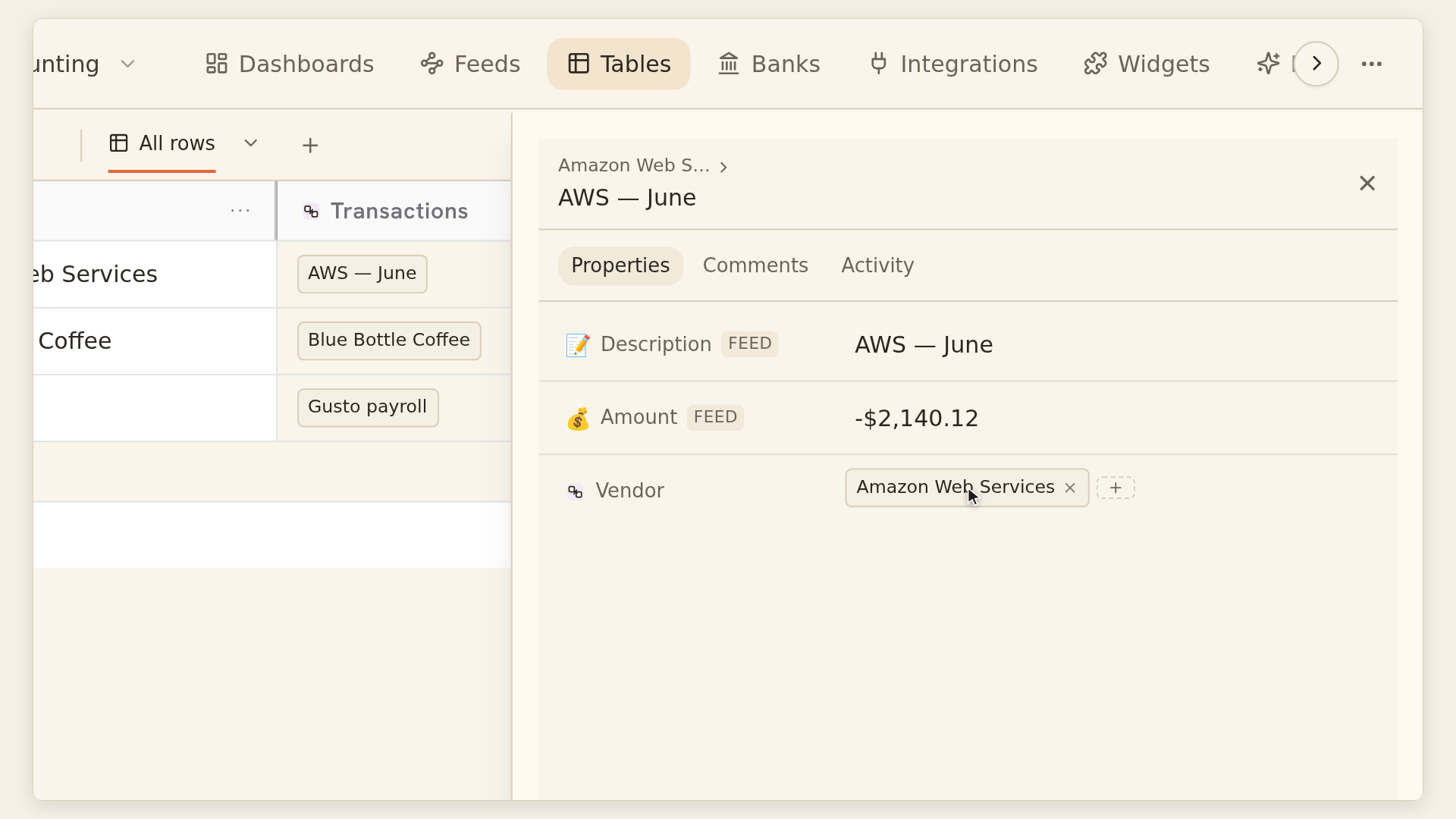
In Transactions, add a field using + → Relation and select Receipts in the same workspace. Choose No limit if a payment may cover more than one receipt. Turn on Show on the other table when you want to navigate back from the receipt; choose the reciprocal cardinality deliberately.
Open the relation cell and select the existing receipt row. Use an identifying primary field, such as a receipt reference, with date and total as preview fields. Compare currency, merchant, amount and timing before linking. The picker does not create a missing receipt and does not decide which payment matches it.
No limit currently means up to 100 linked rows in a cell. That is ample for ordinary receipt matching, but it is not an unlimited warehouse of every transaction for a busy supplier. Group large transaction datasets directly rather than making one enormous relation cell.
Worked example: one purchase, two records
| Record | Illustrative value | Treatment |
|---|---|---|
| Transaction T-101 | £48 outflow at a stationery shop | Count £48 once in cash out |
| Receipt R-201 | £48 purchase total, GBP | Link to T-101; do not add another cash expense |
| Receipt count on T-101 | 1 | Evidence exists; still review it |
| Review status | Checked | Set only after inspecting the match |
Turn linked records into a review queue
Add a Count field that reads the Receipts relation. Add a Lookup when you want to see the linked merchant or receipt date without opening the other table. A Rollup can sum the linked receipt totals, provided the amounts use the same currency. These fields depend on the links you created; they do not search for missing links.
Create a view for purchases requiring evidence whose receipt count is zero. Keep this narrower than all payments: transfers, fees and other movements may need different supporting records. Add a second view for Query status, because a linked receipt is not automatically a correct match.
A useful edge-case test is a £50 payment with a £48 receipt. The relation is valid as a link, but the evidence does not yet explain the £2 difference. Keep it in Query until you understand the reason. Never change the source amount just to make the review look complete.
Build a dashboard that leads to action
Use Add to dashboard from the table or select Tables as a widget source. Start with three widgets: a weekly cash-movement chart, a count of purchases awaiting evidence, and a table of the actual exceptions. Filter before aggregating, and keep currency explicit.
A transaction sum measures movement over a period, not the current bank balance. Use a balance source for cash held today. If the dashboard shows a Partial warning, resolve the omitted rows before treating the total as complete. Keep internal transfers out of operating income and expense while retaining their rows for reconciliation.
Prove the workflow before scheduling it
Test a normal receipt, a payment with no receipt, and a deliberately mismatched pair. Confirm that each appears in the intended view and that the dashboard agrees with the underlying rows. Run an ordinary incremental sync again and check that the same source transaction is not added twice.
Then choose an available feed schedule and make the exception review part of your weekly routine. You have built a cash review with traceable evidence—not an automatic tax judgement or a replacement for your accountant's classifications.
Documentation reviewed: 1 November 2026. Setup references: Tables, Table destinations, relations, lookups and rollups, Document Extractor, and table widgets.