

Sync Viva to Notion
BankSync may support connections to Viva accounts through third-party open banking providers, then route the supported account data shown below to Notion. Set up takes under 10 minutes and requires no code.
How to sync Viva to Notion
Search for Viva in BankSync
Sign up for BankSync and, if Viva is available, link your account through a provider-hosted or bank-hosted authorization flow. BankSync does not store your online banking credentials.
Authorize Notion
Authorise BankSync to write data to your Notion workspace. Select the database, table, or sheet where the supported account data should land.
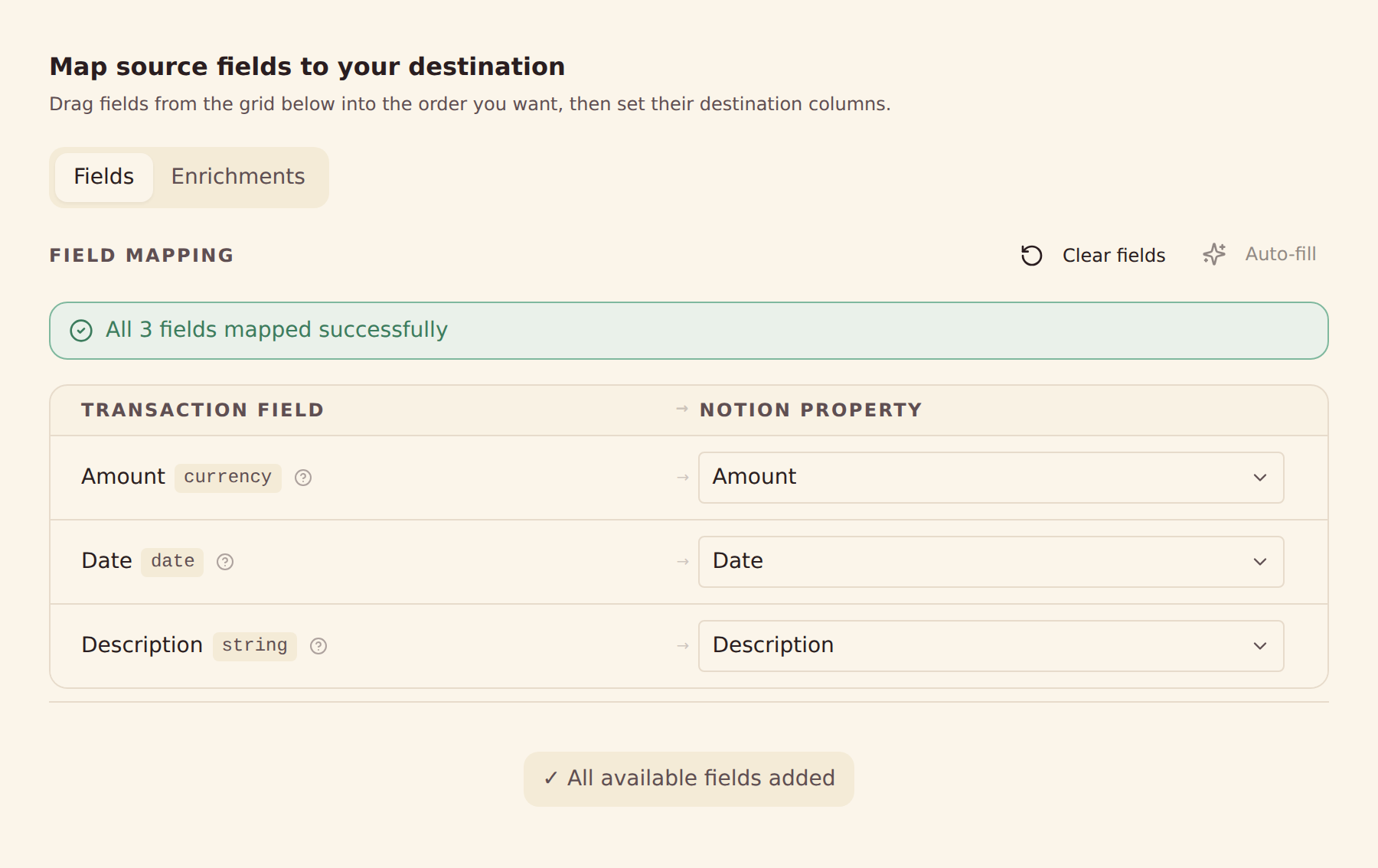
Configure field mappings
Map the supported Viva fields supplied by the provider to columns in Notion.
Set your sync schedule
Choose hourly, daily, or weekly automatic syncs based on your plan, or run a manual sync at any time.
How to Get Started
Loading product walkthrough...
How to use notion
What gets synced from Viva to Notion
Transactions
Sync available Viva transaction history and provider-supplied fields such as dates, amounts, descriptions, merchants, and categories.
Balances
Sync current and available balances for supported Viva accounts.
Account Details
Use provider-supplied account names, masked identifiers, and types to organise data in Notion.
Custom Field Mappings
Map any Viva field to any column in Notion — fully configurable.
Sync Schedules
Choose hourly, daily, or weekly automatic syncs based on your plan, or run a manual sync at any time.
Ready to sync Viva with Notion?
Start your 14-day free trial. Connect your bank, configure your sync, and have data flowing into Notion in minutes.
Get Started FreeSync Viva somewhere else
The same Viva connection can feed any of these destinations.
Other banks that sync to Notion
Institutions in the same market that can also route account data to Notion.
- Sync Airwallex to Notion🇮🇪 Ireland
- Sync Allied Irish Banks to Notion🇮🇪 Ireland
- Sync Allied Irish Banks Business to Notion🇮🇪 Ireland
- Sync An Post Bank to Notion🇮🇪 Ireland
- Sync An Post Money Credit Card to Notion🇮🇪 Ireland
- Sync Avantcard to Notion🇮🇪 Ireland
- Sync Bank of Ireland 365 Online to Notion🇮🇪 Ireland
- Sync Bank of Ireland Business On Line to Notion🇮🇪 Ireland
BankSync is not affiliated with, endorsed by, or an official partner of Viva or Notion. All trademarks belong to their respective owners. Bank connections are established through regulated open banking providers.