
Publishing, Versions and Going Back
How publishing makes a version, what blocks it, how a new version of an automation that is on waits for approval, going back to an earlier version, export, import, copies and the trash.
4 min read
On this page
An automation has a draft — what you see on the canvas — and versions: snapshots of the draft, published one at a time. Runs use a version, never the draft, so you can keep editing while the automation works.
Publishing#
Publish changes appears in the toolbar while the draft differs from the last published version. Pressing it:
- Checks the draft. Anything in To do blocks publishing; the button says what. Nothing is stored until the draft is clean.
- Saves a version. A version is identified by its content, so publishing an unchanged draft makes no new one.
- Requests the grant for that version. A version that needs exactly what the last approved one did is approved already; otherwise it waits for a member. See Approvals and grants.
Publishing once a version is approved. Whether the automation is on or off, the approved version stays current. The new one is marked Changes need approval and takes over the moment a member approves it; runs already going finish on the version they started with. Until then, Test already tries the new version, while real runs use the approved one. An agent or a script may publish; only a person can approve. An automation that was never approved has nothing to keep: its newest version is current and reads Waiting for approval.
Publishing again. Publishing the same unapproved changes again changes nothing: they keep waiting. Publishing the content of a version that is still approved makes it live at once, without asking anyone.
Withdrawing changes that wait. Any of these keeps the approved version and drops the waiting one; your edits stay on the canvas, unpublished:
- Withdraw these changes in the approval pane, or Keep this version, withdraw the waiting changes on the live version in Revisions.
- Going back to any approved version (below).
- Publishing the live version's content again.
Turning on and off#
The On/Off switch turns the automation's triggers on and off. Turning on needs a published version; until its grant is approved, nothing runs and the switch says so. Switching on never publishes: it turns on the current version, and unpublished edits stay a draft — Publish sends them for approval. Turning off stops new runs; runs already going finish. A webhook's address is shown once, the first time you turn the automation on.
Versions#
More → Revisions lists every published version, newest first, with when and by whom it was published (a member, an API key, or BankSync for a managed one) and which one is Live.
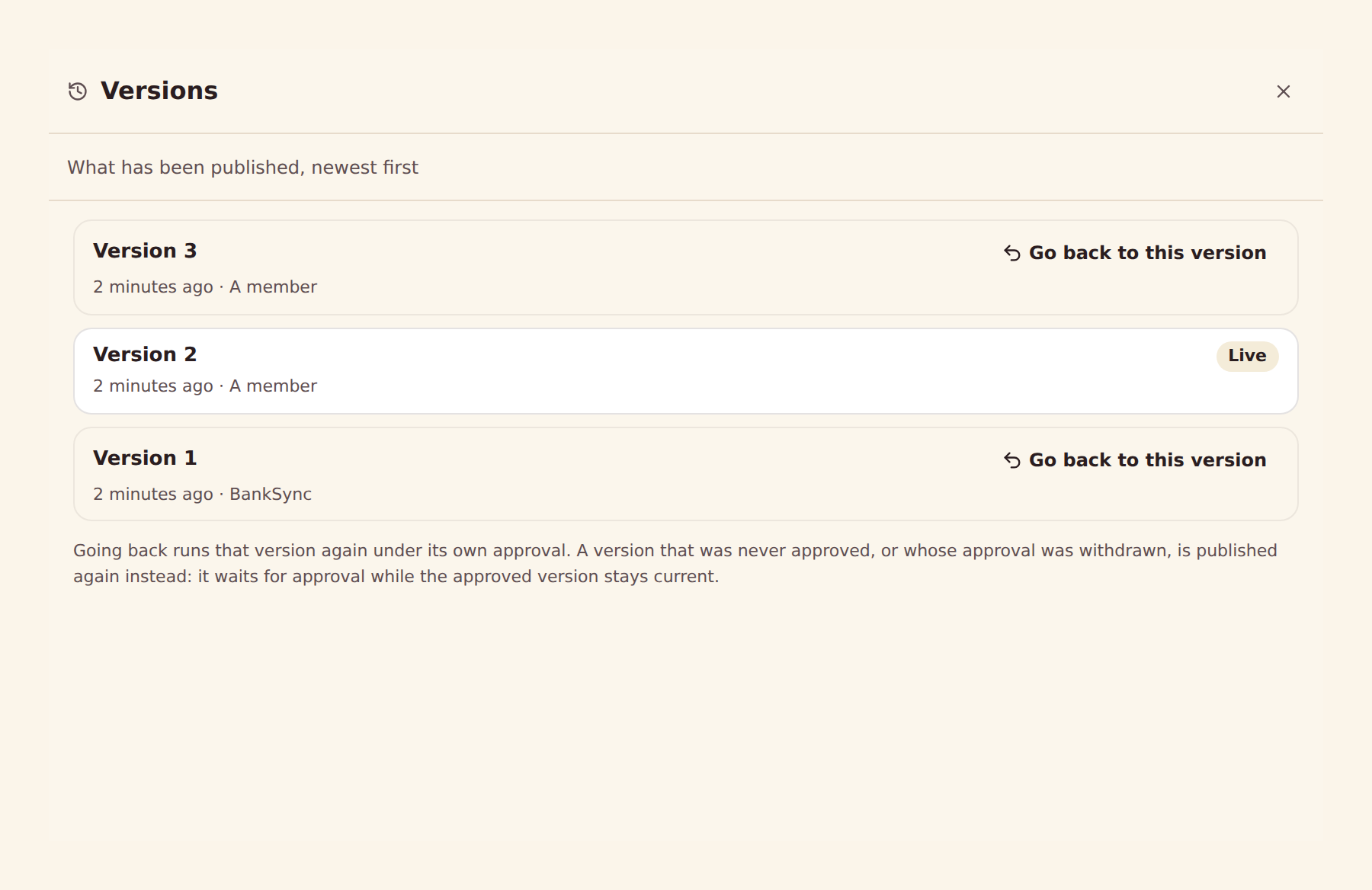
Go back to this version makes an earlier version the running one again. It is a person's decision: a member signed in to BankSync makes it, never an API key or an agent. It holds only while that version's own grant does — approved, not withdrawn, not expired, still matching its bindings and config. Going back also withdraws any changes waiting for approval.
A version that was never approved, or whose approval was withdrawn, cannot be gone back to. It offers Publish this version again instead: the draft becomes that version and is published, waiting for approval like any publish while the approved version stays current.
Going back changes which version runs; the draft on the canvas stays as it is.
Export, import and copies#
- Export (in the More menu) downloads a file with the automation's steps and layout and each step's sample data, with no ids of your workspace, no config values, no secrets and no run data. Keep it in a repository, or send it to another workspace.
- Import (on the Automations tab) brings a file in as a new draft: a BankSync automation file, an n8n workflow or an Activepieces flow, chosen from a file or pasted. BankSync turns another tool's workflow into steps it knows and says what it could not carry across; a step with no match arrives as a placeholder in To do for you to replace. Bindings and config values are never imported: pick the table, bank or feed again, then publish and approve as usual.
- Make a copy makes a new draft with the same steps and no versions, bindings or config values.
Renaming and moving#
Click the automation's name in the toolbar to rename it, or the icon beside it to pick another. Drag it into a folder in the panel on the left, star it, or give the folder an icon. An automation managed from a repository keeps its name and is read-only in the builder; make a copy to change it.
The trash#
Move to trash turns the automation's triggers off and takes it out of the list; runs already going finish. Undo on the notice, or the trash in the folders panel, brings it back — off, until you turn it on again. An automation in the trash cannot be edited, published or run.
Use this page with your AI assistant
Every BankSync doc is available as plain Markdown for agents and LLMs.