
Build Your First Automation
Start from a template or a blank canvas, add and set up steps in the builder, test it with sample data, publish it, approve its grant and turn it on.
7 min read
On this page
This guide takes one automation from nothing to running: Email me when a balance runs low, which watches an account's balance and emails you when it goes under an amount you set. Every automation follows the same path, so the steps carry over to your own.
1. Start one#
Open Automations and choose New automation. The dialog asks for a name and what starts it:
- When something happens — a bank, feed, table, mailbox or support event. See Triggers.
- On a schedule — every few minutes, hour, day, week or month, or a cron expression.
- By hand — a Run button in the toolbar, or a call from an API key or an agent.
- From a template — one of BankSync's ready-made automations, with its trigger and steps in place.
For this guide, pick From a template and choose Email me when a balance runs low. The card shows what starts it and what it needs; the install checklist asks for the bank, then which of its accounts to watch and the amount, and Install makes the automation — switched off — and opens it in the builder. Nothing runs yet. See Automation Templates.
You can also start where the data is: the Automate menu on a bank's page offers the triggers and templates that fit that bank, with the bank already bound.
2. Find your way round the builder#
The builder is one page with four parts:
- The toolbar across the top. On the left, the way back to All automations, the automation's name (click it to rename; click the icon beside it to pick another) and whether the draft is saved. On the right, the On/Off switch, Test, Publish changes (shown only while the draft differs from what is published), the grant (a dot that says where the approval stands), Runs and the More menu.
- The canvas in the middle. Each step is a card; the wires between them are the order they run in. A + on every wire and after the last card adds a step there. Drag a card to move it: only that card moves, and it stays where you put it. Guide lines show when it lines up with another card, and it snaps to them. Tidy up, in the canvas controls beside Fit or on the menu you get by right-clicking the paper, lets the layout settle again. To rewire a step, select the wire and drag one of its ends to another step. Right-click a card, a wire or the paper for what you can do there: rename, duplicate, copy, paste, add a step, delete. The findings list — what is left to do before publishing — sits under the canvas.
- The right panel, in one of two modes. Steps is the library: a search box and the kinds of step, grouped as Starts when, Your apps (Banks, Feeds, Tables, Mailboxes, Support and the rest), Decide, Shape data, Ask AI and Tell someone. Setup is the selected step's settings. Selecting a step shows Setup; clearing the selection shows Steps; closing the panel gives the canvas the width. On a phone or in a narrow window, the panel opens as a sheet under the canvas instead: select a step and its Setup opens there.
- The folders panel on the left, the same one the Automations tab shows. [ opens and closes it.
Moving round the canvas
With a mouse or trackpad, drag on empty paper to select the cards it touches; hold Shift to add to the selection. Scroll to pan, or hold Space and drag, or drag with the middle button. ⌘ or Ctrl with the scroll wheel, or a pinch, zooms. On a touch screen, one finger pans and a pinch zooms. Tap a card to select it, then drag it to move it; a finger on a card you have not selected pans instead, so a stray touch never moves a step. Press and hold for the menu.
Keyboard shortcuts
? shows them all. Undo and redo are ⌘Z and ⌘⇧Z (Ctrl on Windows), Delete removes the selection, ⌘A selects everything, Escape clears the selection, ⌘C / ⌘V copy and paste steps, ⌘D duplicates, + and - zoom, Shift+1 zooms to fit, Shift+0 goes back to 100%, M shows the minimap (on a larger screen with a mouse or trackpad), G turns snapping on and off, and the arrow keys nudge the selection (further with Shift).
3. Set up each step#
Click a step to open its Setup. The header shows the step's name and icon; rename it in place if the sentence on the card does not say what you mean. Three tabs follow:
- Setup — the questions the step asks. A step that acts on one thing (a bank, an account, a table) offers a picker, so you choose it the way you choose a table anywhere else. A step that takes a value shows a field you can type in or fill from Data from earlier steps: every step visible from this one, nearest first, with its fields and a sample value. Clicking a field puts it into the setting as a pill, or at the cursor in a formula. A step that can run once per item or once for the whole list says so, and lets you change it.
- If it fails — retries, what happens when it still fails, and deadlines. See Branches, loops, parallel paths and failures.
- Notes — your notes, whether the step is disabled, and what the step is and may do. Under Advanced is the name expressions use for this step (
node('ref')).
For the balance template:
- Open the trigger, When a balance crosses a level. The bank, account and amount you chose at install are already set; change them here if you like. A picker that waits for an earlier choice says so (Pick a bank first).
- Open Send an email and read the message. It is a formula that joins words and values, such as
item.balance.amount; see Steps and shaping data. Who should get it? is Only me, the member who approves the automation; choose Owners and admins or Owners, admins and editors to email them instead. It never emails anyone outside the workspace.


The findings under the canvas keep up as you work. To do lists what stops publishing (an empty picker, a wire that leads nowhere), May lose detail lists what was dropped or ignored, and Advice is just that. Each finding links to its step.
4. Test it before anything is real#
More → Settings holds two things the draft needs to be tested: Values (config the automation declares — a limit, a label, an hour; set per workspace and never exported) and Test data for each trigger, as JSON.
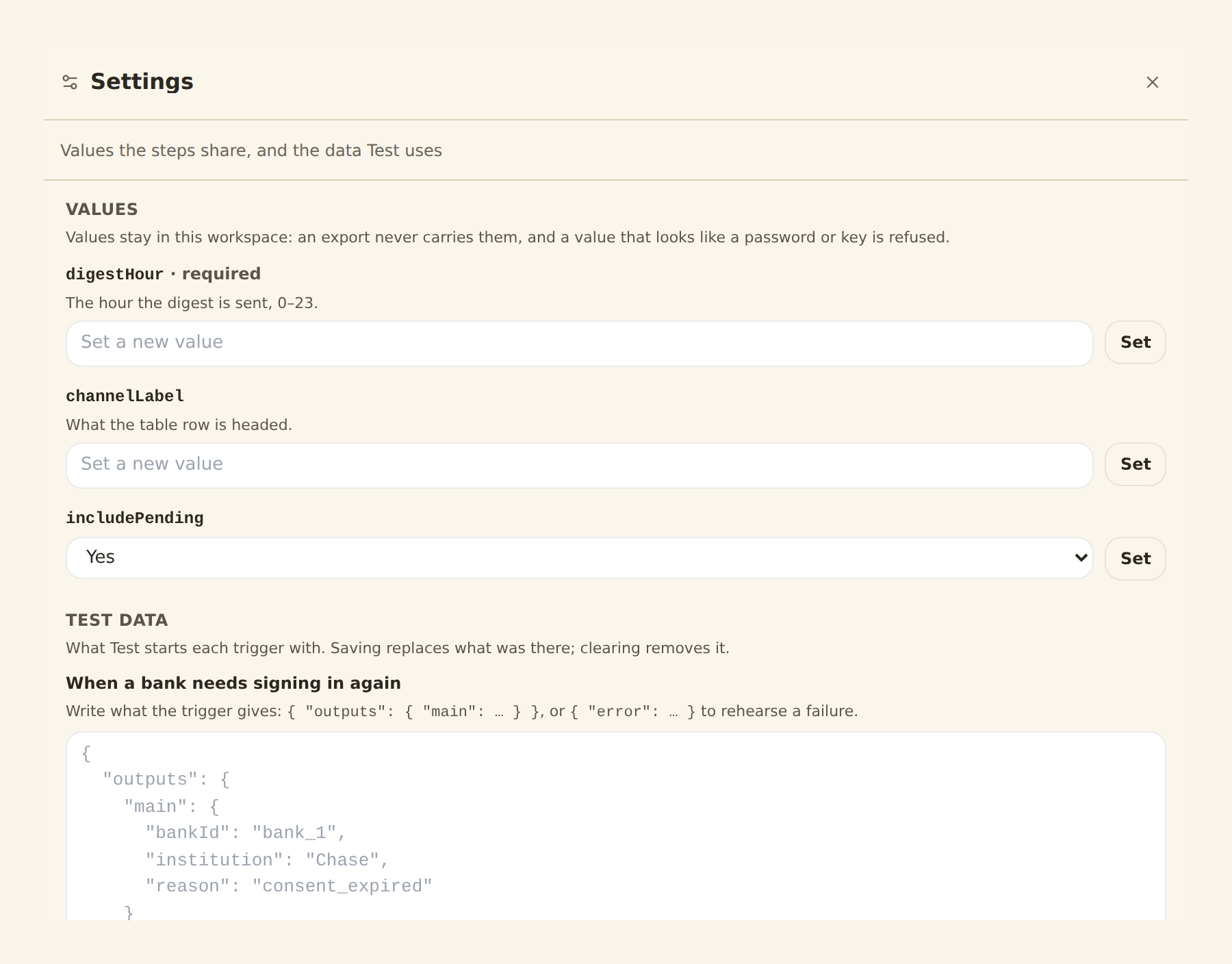
Then press Test in the toolbar. The draft runs on the sample data: steps that read run for real, and every step that would send or write hands on its sample instead. The runs panel marks the run as a test, and each step shows what it was given and what it gave. To try one step alone, select it and choose Test this step. Testing, running and run history covers both in detail.
5. Publish#
Publish changes saves a version and asks for the automation's grant. A draft with anything left in To do cannot be published; the button says why. Publishing an unchanged draft makes no new version.
6. Approve its grant#
The dot beside the toolbar's grant button turns to Waiting for approval. Open it: the panel lists what the automation runs, the permissions it needs (banks:read and notifications:write here), what it touches, where its data may go and any limits on steps that cannot be undone. A member who holds every one of those permissions chooses how long the approval lasts and presses Approve. If you are not that member, Ask an owner. See Approvals and grants.
7. Turn it on and watch it run#
Flip the On/Off switch. From now on BankSync checks the balance as often as your plan syncs, and starts a run — one email — each time it goes under the amount. An automation a balance starts is tried by Run now on its sample data, sending nothing. Open Runs to see each run, newest first, with each step's status and attempts; select a run for its actions.


Starting from a blank canvas#
Choosing When something happens, On a schedule or By hand instead of a template gives you a canvas with one start card. The + after it opens quick add with the steps that fit next; search for what you need ("balance", "row", "notify") or browse the families. Everything else is the same: set up each step, test, publish, approve, turn on.
Prefer to describe it? Your agent can build one for you — see Building with an agent, the CLI or the API.
Use this page with your AI assistant
Every BankSync doc is available as plain Markdown for agents and LLMs.