

You may want Actual Budget for daily budgeting, Sure for a household ledger and Securo for another personal review. That does not mean every app needs every account in your BankSync workspace.
A separate named SimpleFIN access for each app lets you choose its account scope and retire one connection without deliberately retiring the others.
The useful starting point is an account matrix. Decide what each app needs before copying a token. Then verify the result with BankSync's Preview.
Reviewed on 1 November 2026. The matrix below is an illustrative design, not a recommendation to run three finance apps.
An illustrative account-access matrix
| Account | Actual daily budget | Sure household | Securo personal review |
|---|---|---|---|
| Joint current | Include | Include | Exclude |
| Personal current | Include if part of this budget | Exclude | Include |
| Household reserve | Include if budgeted | Include | Exclude |
| Business current | Exclude | Exclude | Exclude |
Define scope around a job
Ask what decision the app helps you make. A daily budget may need the accounts from which you spend. A household overview may need shared accounts. A personal review may need a different subset.
Document the reason for each included account. An unrelated business account should not enter a household app merely because it is available in the same workspace.
There are two distinct questions: what the app can fetch from BankSync, and who can access the records once they are in the app. Account scope addresses the first. The app's users, sharing configuration and hosting arrangement address the second.
Do not use a reporting filter as a substitute for source scope. Hiding an account from a chart does not mean the app never received its records.
Create and verify each access separately
Write the intended account list
Use stable account identities and purpose, not only friendly names.
Create a named access
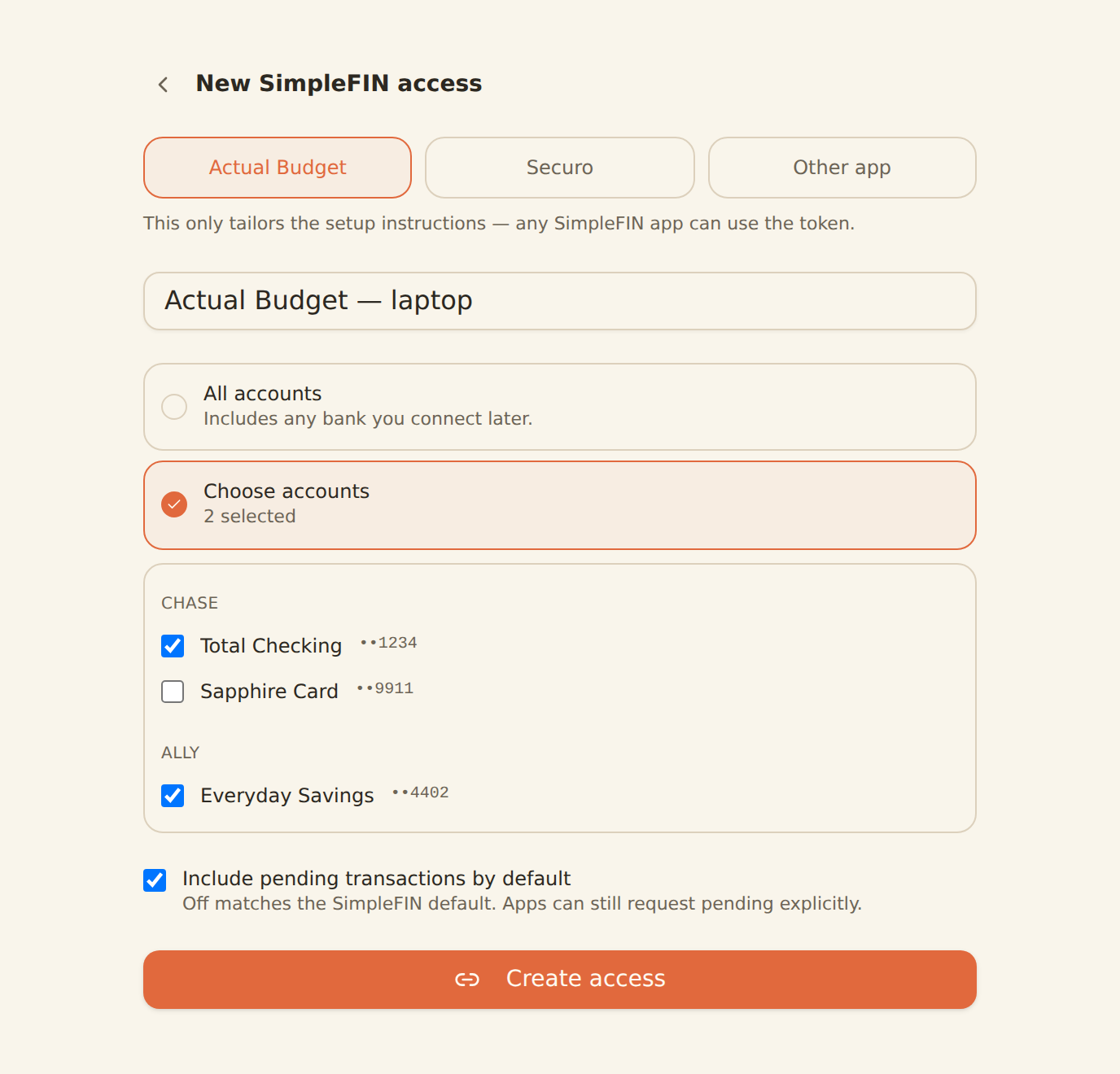
As BankSync Admin or Owner, use Settings → Developers → SimpleFIN → Create access.
Choose accounts explicitly
Replace the default all-account scope with the required subset when appropriate.
Inspect Preview
Compare the response with your account matrix and investigate unexpected records.
Claim the token in one app
Paste it only into the intended application's SimpleFIN setup.
Check the app result
Confirm the imported account list and mapping before moving to another app.
The BankSync SimpleFIN documentation defines scope per access. It also documents changing that scope later and inspecting the exact response through Preview.
The SimpleFIN protocol describes read-only financial-data sharing and the exchange of a setup token for app credentials. You do not need to decode a token manually for these app setup flows.
A setup token is shown once by BankSync and expires after seven days if unused. Treat it as a credential. A name such as “Actual daily budget” is safe operational context; the token itself does not belong in a shared connection register.
Test a scope change without assuming deletion
Suppose Sure no longer needs a personal account. Update that access's scope and verify the new response in Preview. Then inspect the app after its next sync.
The source change limits future access. It should not be treated as an instruction that erases records already imported into the app. Review the app's own account and data-management controls if you also intend to remove stored copies.
Conversely, adding an account to scope is only the start. The app may require account mapping before the new records appear in the intended ledger. Repeat the identity, currency and opening-position checks.
Record the change date and reason. That helps explain why a report's account coverage changed between periods.
Choose the right maintenance action
| Situation | Action to consider | Operational effect |
|---|---|---|
| App needs fewer accounts | Edit scope and inspect Preview | Changes the accounts available on later fetches |
| Credential may be exposed | Rotate the named access and re-link the app | Old app credentials stop immediately |
| App is no longer used | Revoke that access | Future requests fail for that access |
| One bank needs consent renewal | Repair the bank connection | Resolve the upstream source issue |
| App shows no account despite Preview | Inspect app mapping and sync state | Avoid unnecessary credential replacement |
Keep rotation and revocation deliberate
BankSync documents that rotation issues a new setup token and immediately invalidates the credentials the app holds. Plan the re-linking step as part of rotation; otherwise the app will stop syncing until repaired.
Revocation permanently stops that access. It is the appropriate source-side action when retiring an app connection, but still separate from deleting the app's stored data.
Do not rotate every access to troubleshoot one bank's consent problem. Start with Preview and the connection error. Changing unrelated credentials adds work and can interrupt otherwise healthy apps.
For an actual incident, follow your own operational process and review where the token was exposed. The point of separate accesses is that the affected connection is identifiable and independently manageable.
Maintain a small connection register
Keep the app name, purpose, included account labels, owner, creation date and last review date. Add a link to the relevant setup documentation, but no secret.
Review the register when changing apps, household arrangements or server hosting. An old experiment is easy to forget once it stops being used.
For app-specific steps, see the guides for Actual Budget, Sure and Securo. Each begins with a small verified scope so later expansion is intentional.