

“How much have we actually paid for this project?” should not require a search through three bank apps and a pile of receipts.
A useful Notion project-cost tracker connects reviewed bank transactions to project pages. Open a project and you can see its paid costs, the payments behind them, and the items still waiting for allocation.
Start with one business account, one currency and one active project. The example below shows a studio with £720 paid for Project Cedar, against a £1,000 cash-cost allowance. Its remaining allowance is £280 before any unpaid commitments. These are illustrative management figures, not a formal profit calculation.
Product documentation reviewed on 1 November 2026.
Build two databases first
| Database | Core properties | Job |
|---|---|---|
| Transactions | Date, signed amount, currency, description, account | Preserve incoming bank facts |
| Transactions review fields | Project relation, reviewed cost, review status | Explain which project bears the cost |
| Projects | Project name, owner, cash-cost allowance | Hold the working plan |
| Projects rollup | Sum of linked reviewed costs | Show paid cost attributed to the project |
Connect the bank records, then add project meaning
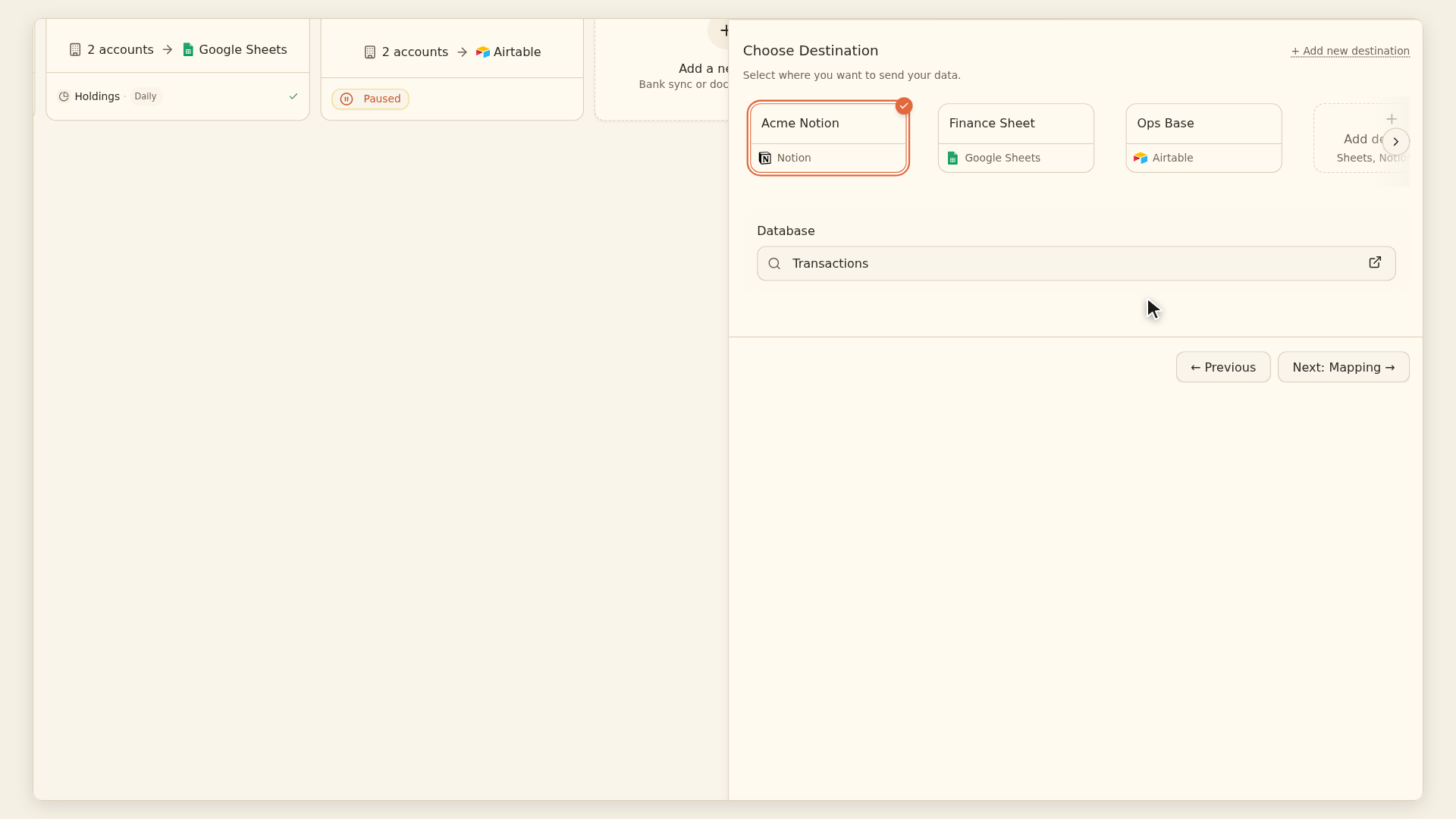
The BankSync Notion guide documents authorising a Notion workspace, sharing the destination database and mapping fields. Use Date properties for dates and Number properties for amounts. Select the intended database in your feed.
For UK connections, verify your exact bank and business account through the UK bank guide. Available history and account support depend on the connection. Begin with posted records so pending and final rows do not inflate your paid-cost view.
Create project review properties separately from the feed-owned fields. A bank description may identify a supplier; it generally does not tell you which client project benefited from the purchase. Treat that project assignment as a reviewed business decision.
Set up the project relationship
Create a Projects database
Add one page per project and record its owner, currency and working cash-cost allowance.
Add a Project relation
In Transactions, create a Notion relation to Projects. For the simple workflow, each cost belongs to one project.
Show the reciprocal relation
Enable the corresponding relation on Projects so reviewers can open its linked transactions.
Assign and review
Link eligible payments and record a positive reviewed cost for outgoing project purchases; treat refunds consistently.
Add a rollup
On Projects, roll up the reviewed cost property from related transactions using Sum.
Notion's relations and rollups guide explains the relation property, reciprocal link and rollup calculation. Those features organise links you create; they do not establish that a bank payment belongs to a project.
In this suggested design, the reviewed cost is a separate number. Check it against the signed bank amount, and record any difference. An incoming client payment should not silently become a negative project expense. Keep project revenue and costs as distinct measures.
Project Cedar: a worked review
| Payment | Reviewed allocation | Project cost |
|---|---|---|
| Print materials, £240 | Entirely Cedar | £240 |
| Venue deposit, £300 | Entirely Cedar | £300 |
| Travel, £180 | Entirely Cedar | £180 |
| Total paid cost | Three reviewed payments | £720 |
| Cash-cost allowance | Planning input | £1,000 |
| Allowance less paid cost | Before unpaid commitments | £280 |
Handle shared purchases before they distort totals
A £200 purchase shared equally between Cedar and another project should contribute £100 to each. Linking the same £200 transaction to both projects and summing its full amount would report £400 across the two projects.
When shared purchases are common, introduce an Allocations database. Each allocation row links one transaction to one project and carries its own allocated amount. Roll up allocation amounts to projects, then check that allocations sum to the eligible amount of the source transaction.
For a one-off shared purchase, you can also record the allocation explicitly in your review process. The essential rule is the same: a link identifies a relationship; it does not divide money automatically.
Keep unallocated records in a visible queue. A blank project is unfinished review, not evidence that the cost belongs nowhere.
Three views that keep the tracker useful
| View | Suggested filter | Question |
|---|---|---|
| Needs allocation | Review incomplete or project blank | What still needs a decision? |
| Project paid costs | Selected project and reviewed status | What have we paid for this work? |
| Commitments | Separate planned/unpaid records | What could still consume the allowance? |
Use the project page in a weekly review
Open the cost rollup, inspect the largest new payment and clear the allocation queue. Then review unpaid commitments separately. A supplier quote is not a bank transaction, but it can explain why the apparent £280 remaining allowance is already spoken for.
Do not combine multiple currencies into one rollup without a documented conversion method. Keep a project currency and review any exception before aggregation.
Notion views and filters can present the same records in different ways. Label each view's scope so the project owner understands whether it contains all payments, reviewed costs or only this month's activity.
Finally, reconcile the source account outside the project allocation view. Project totals can be internally consistent even when a bank record is missing. Completeness and allocation accuracy are separate controls.