

Use Claude Desktop with Guava
BankSync's MCP server can let Claude Desktop query supported Guava account data that you have connected through BankSync and authorized for API access. Query your finances in natural language without spreadsheets or exports.
BankSync is not affiliated with, endorsed by, sponsored by, or partnered with Guava or Claude Desktop. Names are used only to describe potential account-data coverage and client compatibility.
How to connect Claude Desktop to Guava
Search for Guava in BankSync
Sign up for BankSync and, if Guava is available, link your account through a provider-hosted or bank-hosted authorization flow.
Generate an API key
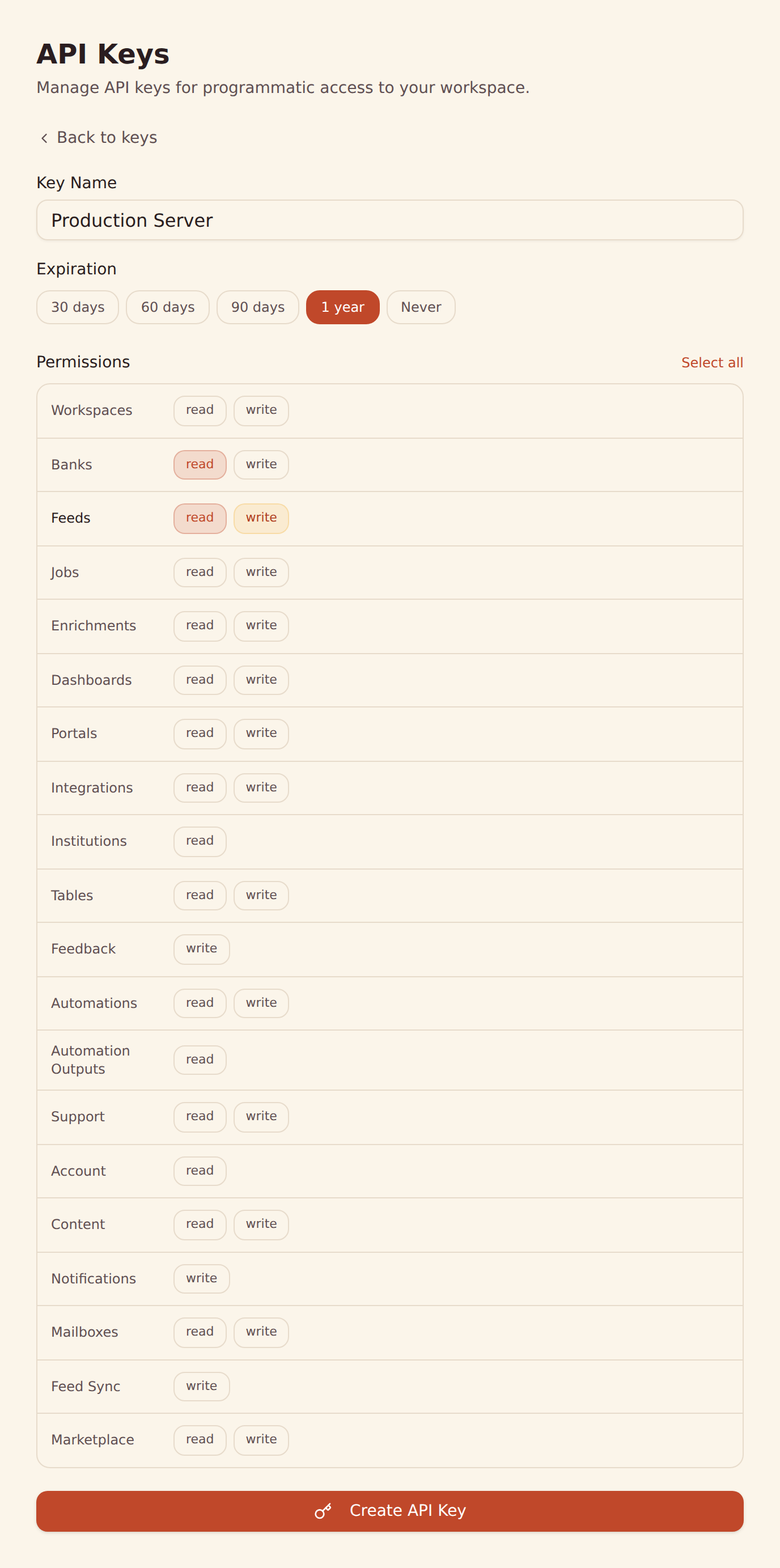
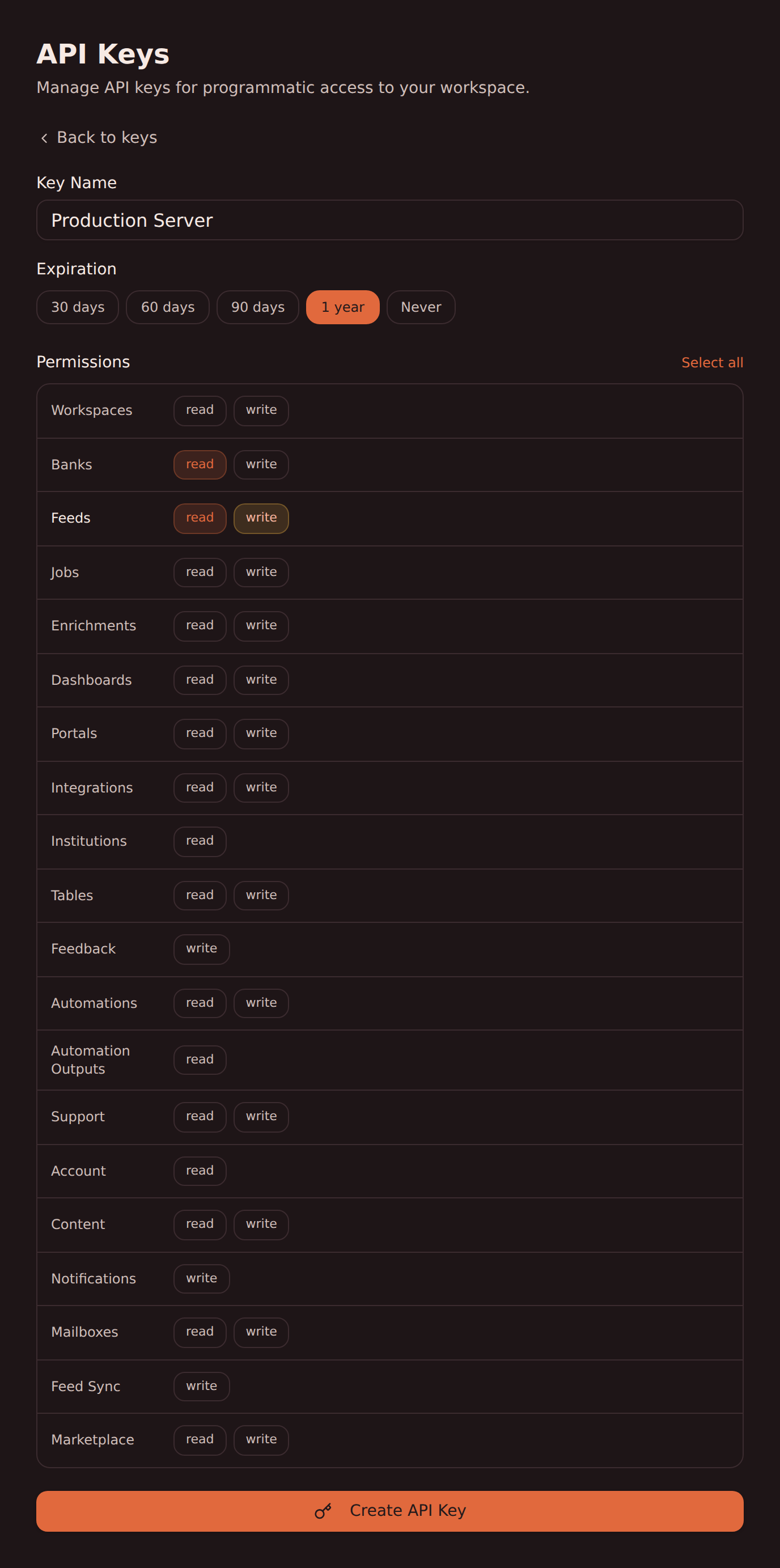
Create an API key from the Developers section of your BankSync workspace.
Configure Claude Desktop
Add the BankSync MCP server to Claude Desktop using your API key. Follow our Claude Desktop setup guide for step-by-step instructions.
Start querying
Ask Claude Desktop about supported Guava transactions, balances, and more using natural language.
Claude Desktop MCP Configuration
Add this configuration to let Claude Desktop query supported Guava account data through BankSync.
One-click install for the Claude Desktop app
Skip the JSON. Download the BankSync Desktop Extension and open it with the Claude Desktop app, and you'll be prompted for your API key during install. The link always serves the latest release.
Download banksync-mcp.mcpb{
"mcpServers": {
"banksync": {
"url": "https://mcp.banksync.io",
"headers": {
"X-API-Key": "bsk_your_key_here"
}
}
}
}What Claude Desktop can access from Guava
Accounts
List the Guava accounts connected through BankSync and visible to the API key scopes you grant.
Transactions
Query supported Guava transactions with provider-supplied dates, descriptions, amounts, merchants, and categories.
Balances
Get current and available balances for supported Guava accounts.
Holdings
View supported investment positions, quantities, and market values from Guava.
Trades
Access supported investment trade and activity history from Guava.
Loans
Check supported loan balances and provider-supplied liability details from Guava.
Ready to connect Claude Desktop to Guava?
Start your 14-day free trial. Connect your bank, generate an API key, and start querying data in minutes.
Use Guava with another agent
The same BankSync MCP server and API key work with every one of these.
Other banks you can use with Claude Desktop
Institutions in the same market that Claude Desktop can query through BankSync MCP.
- Use Chase with Claude Desktop🇺🇸 United States
- Use American Express with Claude Desktop🇺🇸 United States
- Use Capital One with Claude Desktop🇺🇸 United States
- Use Wells Fargo with Claude Desktop🇺🇸 United States
- Use Citibank Online with Claude Desktop🇺🇸 United States
- Use Fidelity with Claude Desktop🇺🇸 United States
- Use Bank of America with Claude Desktop🇺🇸 United States
- Use Charles Schwab with Claude Desktop🇺🇸 United States
BankSync is not affiliated with, endorsed by, or an official partner of Claude Desktop or Guava. All product names and trademarks are the property of their respective owners. Bank connections are established through regulated open banking providers.