# How to Import Bank Transactions Into Excel Automatically (2026 Guide)
> The quick answer: Excel no longer includes a native bank feed. Microsoft ended Money in Excel on June 30, 2023. In 2026, the practical options are manual CSV imports, a Power Query folder that cleans those files, an Excel bank-feed add-in, or a scheduled service that writes transactions into a workbook stored in OneDrive or SharePoint.
For three years, Excel users have been asking the same question in slightly different forms:
- What replaced Money in Excel?
- Can Excel connect directly to my bank account?
- How do I automatically download bank transactions into Excel?
- Can Power Query retrieve bank data without a CSV?
The honest answer is that nothing native replaced Money in Excel. Microsoft stopped new transaction updates and new account connections when the service ended in 2023.
That does not mean the workbook has to stay manual. It means the bank connection now comes from somewhere else.
This guide compares the four workable routes, including the best free setup for people who do not mind downloading files and the closest thing to a fully automatic Excel bank feed.
Four ways to import bank transactions into Excel
| Method | Cost | What it automates | What remains manual | Best for | |---|---:|---|---|---| | Open a CSV in Excel | Free | Nothing | Download, clean, paste and deduplicate | One-off reviews | | CSV folder + Power Query | Free | Cleaning and combining | Download each new file | Excel power users on a budget | | Excel bank add-in | Subscription | Fetching and writing | Tool-specific setup | Simple personal finance | | Scheduled bank sync | Subscription or trial | Fetching, mapping and scheduling | Initial setup only | Ongoing reporting and bookkeeping |
What happened to Money in Excel?
Microsoft launched Money in Excel as a premium Microsoft 365 template that could connect financial accounts and pull transactions into a workbook.
It ended on June 30, 2023. After that date, existing workbooks remained yours, but they stopped receiving new transactions and could not connect or reconnect accounts.
That distinction matters for searchers looking for a Money in Excel replacement. The formulas, tables and dashboards were not the hard part. The missing feature is the bank feed.
Third-party services now fill that gap in different ways:
- some deliver a ready-made budgeting system;
- some act as Excel add-ins;
- some write data into any mapped workbook; and
- some require you to keep downloading CSV files but automate the cleanup.
Route 1: manually import a bank CSV into Excel
The basic workflow is familiar:
1. Sign in to the bank. 2. Export transactions as CSV. 3. Open the file in Excel. 4. Repair dates, amounts and headings. 5. Copy the data into your master workbook. 6. Remove duplicates.
CSV is usually better than OFX or QFX for spreadsheet work because Excel can read it directly and the columns are visible.
The problems appear when you do this regularly. Different banks use different formats. One account exports negative expenses, another splits Debit and Credit, and another includes currency symbols that turn numbers into text.
Manual imports are fine for a one-time audit or annual analysis. They are a weak foundation for a live cash-flow model.
Route 2: use Power Query to combine a folder of bank exports
This is the best free method and it deserves more attention.
Power Query cannot normally sign in to a consumer bank account by itself. What it can do extremely well is combine and clean every export placed in a folder.
The monthly routine becomes:
1. Download the new CSV from your bank. 2. Save it into the correct folder. 3. Open the workbook. 4. Click Refresh All.
Power Query handles the repeated transformation steps.
Build the Power Query folder pipeline
1. Create a folder for each export format
Use one folder per bank or card when the files have different structures.
Example:
``text Finance/ CommBank-exports/ Business-card-exports/ Savings-exports/ ``
2. Connect Excel to the folder
In Excel for Windows:
Data → Get Data → From File → From Folder
Choose the folder, then select Combine and Transform Data.
3. Clean the sample file
Typical steps include:
- promote the correct row to headers;
- remove non-transaction rows;
- convert Date to a date type;
- convert Amount to a decimal number;
- add an Account column;
- standardise descriptions; and
- remove duplicates.
Power Query records these transformations and applies them to future files.
4. Load the result into a table
Your pivot tables, formulas and charts should read from the loaded table, not the individual CSVs.
A simplified Power Query M example:
``text let Source = Folder.Files("C:\\Finance\\BankExports"), CsvFiles = Table.SelectRows(Source, each [Extension] = ".csv"), Parsed = Table.AddColumn( CsvFiles, "Data", each Csv.Document([Content], [Delimiter=",", Encoding=65001]) ), Combined = Table.Combine(Parsed[Data]), Headers = Table.PromoteHeaders(Combined, [PromoteAllScalars=true]), Typed = Table.TransformColumnTypes( Headers, {{"Date", type date}, {"Amount", Currency.Type}} ), Deduplicated = Table.Distinct(Typed) in Deduplicated ``
The exact code will depend on the bank's headers.
What Power Query does not automate
It automates the cleaning, not the fetching.
You still need to sign in to each bank and download each file. That may be a good trade if you only refresh monthly and want a zero-subscription system.
Route 3: install an Excel bank-feed add-in
Excel add-ins can pull supported bank data into a worksheet without the CSV routine.
The convenience is real: authenticate, choose accounts and update the sheet from inside Excel.
Before choosing an add-in, check:
- which countries and banks it supports;
- whether it imports transactions, balances and investments;
- whether updates are automatic or require a Sync Now button;
- how much history it retrieves;
- whether it uses its own layout or maps to yours;
- whether it works on Mac and Excel for the web; and
- whether the data can also go to another destination.
For example, SheetLink currently supports Excel access on its Pro plan and adds unattended automation and developer outputs on its higher plan. Other products may focus only on a generated finance workbook.
An add-in is a good answer when Excel is the entire workflow. It becomes restrictive when the same bank data also needs to reach Google Sheets, Notion, Airtable, a database or an AI tool.
Route 4: schedule bank transactions into an Excel workbook
A dedicated sync service is the closest replacement for the missing Money in Excel bank feed.
BankSync connects to supported institutions through open-banking providers and writes new data into a workbook stored in Microsoft 365. You choose the worksheet, map the fields and select a schedule.
One important requirement
The workbook must live in OneDrive or SharePoint.
A cloud service cannot update a local-only .xlsx file on a laptop that may be offline. When the workbook lives in Microsoft 365, the sync writes to the cloud copy and the changes appear in Excel for the web, Windows or Mac.
Set up an automatic Excel bank feed
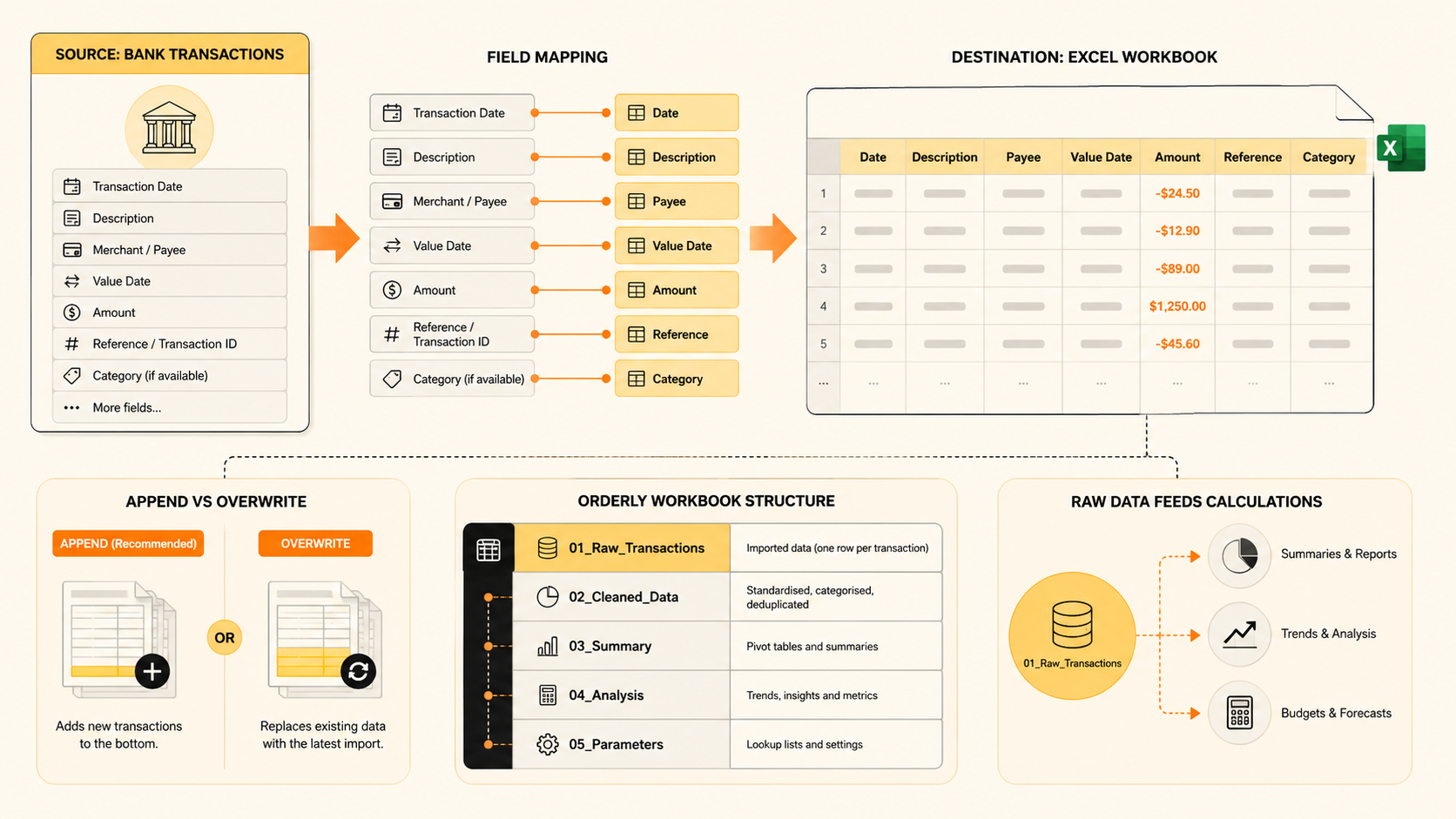
1. Create a BankSync account. Start the 14-day trial without a credit card. 2. Connect your banks. Search more than 11,000 institutions across supported regions. 3. Move or create the workbook in OneDrive. Use a dedicated Transactions table or worksheet. 4. Choose Excel as the destination. Authorise the Microsoft workspace and select the workbook. 5. Map the columns. Match date, transaction ID, description, merchant, amount, category and account. 6. Choose a schedule. Run every 15 minutes, hourly, daily, weekly or manually. 7. Build downstream analysis. Point Power Query, pivot tables, formulas, charts, VBA or Office Scripts at the synced table.
See the BankSync Excel integration
The best Excel table structure for bank transactions
Keep the incoming feed simple and stable.
| Column | Purpose | |---|---| | Transaction ID | Prevents duplicate rows | | Date | Supports period reporting | | Description | Stores the source-bank description | | Merchant | Gives a cleaner reporting label where available | | Amount | Uses one consistent signed-number convention | | Category | Powers expense and budget reports | | Account | Identifies the bank or card | | Balance | Supports balance and reconciliation views where available | | Currency | Protects multi-currency reporting | | Notes | Holds your manual context |
Format the range as an Excel Table. Structured references expand automatically as new rows arrive and are safer than formulas tied to a fixed range.
Excel formulas worth adding after the feed works
Assume the table is called Transactions.
Spending this month
``text =ABS(SUMIFS( Transactions[Amount], Transactions[Date],">="&EOMONTH(TODAY(),-1)+1, Transactions[Amount],"<0" )) ``
Spending for a selected category
``text =ABS(SUMIFS( Transactions[Amount], Transactions[Category],A2, Transactions[Date],">="&EOMONTH(TODAY(),-1)+1, Transactions[Amount],"<0" )) ``
Transactions needing review
``text =FILTER(Transactions, Transactions[Category]="", "Nothing to review") ``
Current financial-year spending in Australia
``text =LET( fyStart,DATE(YEAR(TODAY())-(MONTH(TODAY())<7),7,1), ABS(SUMIFS( Transactions[Amount], Transactions[Date],">="&fyStart, Transactions[Amount],"<0" )) ) ``
Power Query and an automatic feed can work together
These are not competing approaches.
A scheduled service can deliver the raw transactions into a table, while Power Query handles:
- normalising descriptions;
- joining category or client mapping tables;
- splitting transfers from spending;
- merging several transaction tables;
- creating month and financial-year columns; and
- producing a clean model for Power Pivot.
That is often the strongest Excel setup: the bank feed handles retrieval; Power Query handles transformation; pivot tables and formulas handle analysis.
How to avoid duplicate transactions
A dependable system needs a stable transaction ID.
Do not rely only on Date + Description + Amount. Two identical purchases can happen on the same day.
For CSV and Power Query workflows:
- preserve any bank reference or ID column;
- include the source account;
- remove duplicates on the most stable combination available; and
- avoid overlapping export ranges where possible.
A sync service should track provider transaction IDs and write each transaction only once, even when sync windows overlap.
Which route should you choose?
Choose manual CSV imports for a one-off analysis.
Choose Power Query + CSV folders when you want a free monthly system and enjoy Excel automation.
Choose an Excel add-in when you want a simple feed inside one workbook.
Choose a scheduled sync service when the workbook should update without a person downloading files and the bank data may also need to feed other tools.
Frequently asked questions
Can Excel connect directly to a bank account?
Not through a built-in consumer bank-feed feature. You need CSV files, a third-party add-in or an external sync service.
What replaced Money in Excel?
Microsoft did not release a native replacement after Money in Excel ended on June 30, 2023. Tiller, BankSync, SheetLink and other third-party products now provide different versions of automated transaction importing.
Can Power Query automatically download bank transactions?
Power Query can automatically retrieve data from a supported API or file location, but consumer banks do not generally expose a simple public endpoint for a workbook. Its most practical free use is cleaning and combining bank CSV exports.
Does automatic Excel bank syncing work on Mac?
Yes when the service writes into a workbook stored in OneDrive or SharePoint. The updated workbook can then be opened on Mac, Windows or the web. Some Power Query features and add-ins vary by platform, so check the specific tool.
Can I use an existing financial model?
Yes. Choose a mapping-based feed and write the raw transactions into a dedicated table. Your existing formulas, pivot tables, dashboards and VBA can reference that table.
Can Australian bank transactions sync to Excel?
Yes. BankSync uses the Consumer Data Right for supported Australian institutions and writes the data into an Excel workbook through Microsoft 365.
Read the Australian bank-to-spreadsheet guide
CSV, OFX or QFX: which format is best for Excel?
CSV is usually the simplest for spreadsheet analysis. OFX and QFX are mainly designed for financial-software importers.
How frequently should an Excel bank feed update?
Daily is enough for personal finance. Hourly or 15-minute schedules are more useful for operational cash-flow reporting. The transaction still needs to be posted and available through the bank-data provider before it can appear.
The bottom line
Money in Excel is gone. Your workbook does not have to become a museum.
Use Power Query when you want to automate file cleanup for free. Use a scheduled bank feed when the actual goal is to stop downloading files.
Sources checked
- Microsoft: end of support for Money in Excel
- BankSync: sync transactions to Excel
- BankSync: Australian banks to Excel
- SheetLink: Excel and automation features