
BankSync is now available in Claude’s Connectors Directory
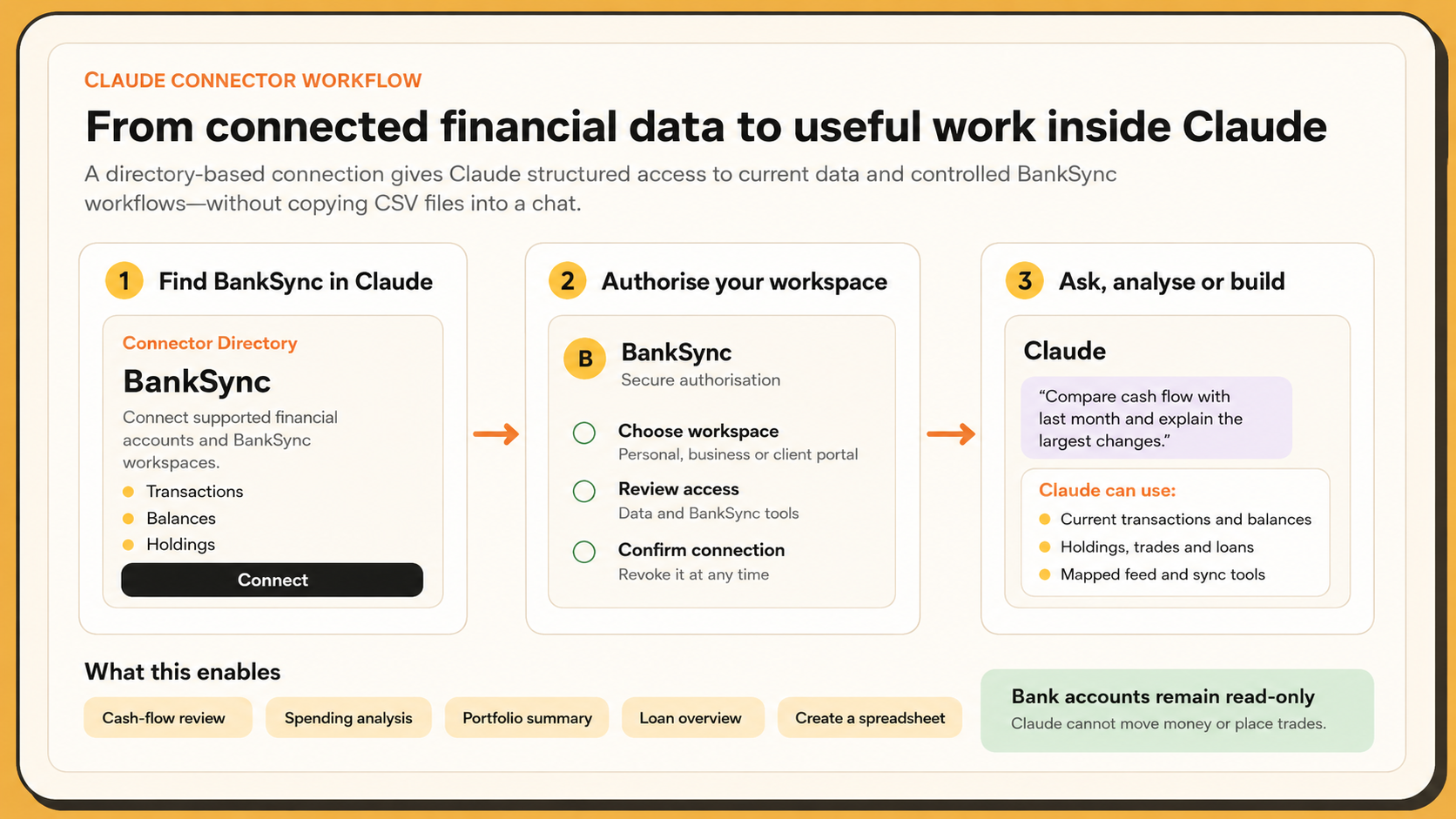
Claude users can now discover and connect BankSync directly from Claude, authorise a workspace and start working with supported financial data without editing a configuration file.
View BankSync in ClaudeClaude can analyse a spreadsheet you upload. The limitation is that the spreadsheet begins ageing as soon as you export it.
A financial connector changes the workflow. Instead of repeatedly downloading files, cleaning columns and explaining what each account represents, Claude can request the relevant data from BankSync when the conversation needs it.
BankSync is now listed in the Claude Connectors Directory. That makes the setup significantly simpler for most Claude users: find the connector, authorise a BankSync workspace and start asking questions.
This guide explains the directory setup, what Claude can access, what it cannot do and how to move beyond basic spending questions into useful financial workflows.
Why connect Claude to financial data?
Claude is capable of summarising, comparing, calculating and explaining financial information. It becomes much more useful when the underlying numbers are current, structured and available on demand.
A connected workflow can help with:
- reviewing cash flow across several accounts;
- finding recurring charges or unusual transactions;
- comparing spending between periods;
- summarising investment holdings and trades;
- reviewing loans and liabilities;
- calculating a current financial position;
- investigating why a balance changed; and
- creating or reviewing BankSync feeds that send data into spreadsheets and workspaces.
The goal is not to hand control of your finances to an AI. It is to give Claude a controlled way to retrieve the information needed to answer a specific question.
Three ways to give Claude financial context
| Feature | Directory connector | Manual MCP setup | CSV or file upload |
|---|---|---|---|
| Initial setup | Connect and authorise inside Claude | Configure a server or desktop bundle | Export and upload files |
| Data freshness | Retrieved from BankSync when needed | Retrieved from BankSync when needed | Fixed at export time |
| Works across conversations | Connector stays available until disabled | Available while the MCP setup remains configured | Files must be supplied again when needed |
| Technical work | No configuration file for most users | May require an API key, command or JSON configuration | No integration, but repeated manual work |
| Best suited to | Claude web, desktop and supported connector surfaces | Claude Code or specialist MCP clients | One-off analysis |
What the BankSync connector gives Claude
BankSync’s MCP server exposes 40 tools, including 24 read-only tools. Claude chooses the relevant tool based on the request rather than loading an entire financial history into every conversation.
The available information depends on the accounts you connect and the data supplied by the relevant institution or provider.
Transactions and balances
Query transaction history, descriptions, amounts, categories and current or available balances from supported accounts.
Investments
Review supported holdings, trades, account values and settled cash from connected brokerage accounts.
Loans and liabilities
Inspect supported loan balances and account details without giving Claude permission to alter the account.
Feeds and sync jobs
List, review and manage BankSync data feeds and sync jobs, subject to the permissions granted to the connector.
Multiple workspaces
Work with personal, business or managed client workspaces that your BankSync account is authorised to access.
Structured schemas
Claude receives defined fields and tool descriptions instead of trying to infer a data model from an inconsistent export.
How to connect BankSync to Claude directly
Before starting, you need a BankSync workspace with at least one supported financial account connected. Institution, account and data-type availability varies by region and provider.
The directory connection is different from the older Claude Desktop setup that required an API key and configuration file.
Connect BankSync in five steps
Connect your financial accounts to BankSync
Create or open your BankSync workspace, go to Banks and connect the supported bank, card or brokerage accounts you want Claude to use. Complete the institution’s consent or authentication flow.
Open the BankSync connector listing
Visit the BankSync page in Claude’s Connectors Directory. You can also browse Claude’s connector settings and search for BankSync.
Select Connect
Review the connector listing and begin the connection. Claude may ask you to sign in or redirect you to BankSync for authorisation.
Authorise the correct BankSync workspace
Choose the workspace you intend to use, review the requested access and approve the connection. Do not authorise a shared or client workspace unless it is appropriate for the Claude account you are using.
Test the connection in a new Claude conversation
Ask a narrow question such as “What accounts can you access through BankSync?” or “Show my current balances by account.” Claude should call the BankSync connector and identify the data it used.
Start with questions that are easy to verify
Do not begin with a broad request such as “manage my finances”. Start with a question where you can recognise whether the answer is complete.
Useful first prompts include:
- “List the BankSync workspaces and financial accounts available to you.”
- “Show current and available balances by account and state the balance timestamp.”
- “Summarise transactions from the last seven days by account.”
- “Find recurring charges from the last three months and show the evidence for each pattern.”
- “Compare this month’s outflows with the same period last month.”
- “Summarise my current investment holdings and flag concentration by position.”
- “List my supported loans and current outstanding balances.”
Ask Claude to state the date range, accounts and assumptions used. That makes the output easier to verify and reduces the risk of silently comparing different periods.
For more examples, see 10 useful questions to ask an AI about your finances.
More than a personal spending chatbot
A useful financial connector should not force every user into the same budgeting interface. BankSync keeps the financial-data layer separate from the place where analysis happens.
That means a Claude conversation can begin with a question and continue into a structured workflow.
Analyse inside Claude
Ask about cash flow, spending, balances, holdings, trades, loans, merchants, categories or changes between periods. Claude can combine several BankSync tool calls and explain the result in plain language.
Move data into your workflow
Ask Claude to inspect your available integrations and draft a mapped feed for Google Sheets, Excel, Notion or Airtable. Review the source accounts, destination, fields and schedule before approving creation.
Example Claude workflows with BankSync
| Goal | Example request | Expected output |
|---|---|---|
| Cash position | “Show cash by account and separate available from current balance.” | Account-level balances with timestamps and totals. |
| Cash-flow review | “Compare inflows and outflows for the last three complete months.” | Period totals, major drivers and the accounts included. |
| Spending analysis | “Find the ten largest non-transfer outflows this quarter.” | Transaction evidence, merchants, dates and amounts. |
| Portfolio summary | “Summarise holdings by account and calculate position concentration.” | Supported positions, market values and concentration calculations. |
| Spreadsheet automation | “Draft a daily transaction feed to my finance workbook with date, account, merchant, amount and category.” | A proposed BankSync feed configuration for review before creation. |
| Client or entity review | “List the workspaces I manage and show which have failed sync jobs.” | Workspace and job information within the user’s authorised scope. |
The exact tools and fields available depend on your connected accounts, workspace permissions and integrations.
Security and permission boundaries
Connecting financial data to an AI should make the permission model clearer, not blur it.
BankSync’s financial connections are read-only. BankSync and Claude cannot use the connector to initiate transfers, pay bills, change bank settings or place trades. Bank credentials are handled through the institution or the relevant connectivity provider rather than being entered into Claude.
BankSync follows a pass-through-by-default approach for financial data, while some enabled features may require storage. Claude receives the data returned by the tools it calls, so you should still apply the same judgement you would when sharing financial information in any cloud service.
Practical controls include:
- connect only the workspace and accounts needed for the task;
- review the scopes or permissions presented during authorisation;
- use a separate BankSync workspace where entity separation matters;
- inspect any proposed write action before approval;
- remove or disable the connector when it is no longer needed; and
- revoke the underlying bank consent separately if you want to end the financial connection itself.
Directory connector or manual MCP setup?
Use the Claude directory connector when you want the simplest supported path inside Claude.
Use the manual MCP setup when you are working in Claude Code, need project-level configuration or use another MCP-compatible client. The existing Claude Desktop MCP setup guide remains useful for those workflows.
Both routes connect to the same underlying BankSync platform. The difference is how the client discovers and authenticates the MCP server.
Frequently asked questions
Claude and BankSync connector FAQs
The bottom line
The most important change is not that Claude can display another account balance. It is that financial data can now participate in a conversation and continue into the tools where work actually happens.
With BankSync in Claude’s Connectors Directory, the standard setup no longer begins with a configuration file. Connect a supported account to BankSync, authorise the connector and ask a question you can verify. From there, you can expand into cash-flow reviews, investment analysis, multi-workspace reporting and mapped spreadsheet feeds.