
The spreadsheet becomes much more useful when it shows the whole picture: the main current account, a savings account, a credit card and perhaps a business account or a second card. It also becomes easier to break.
The common failure is not that Google Sheets cannot handle multiple accounts. It is that account identity disappears, transfers are counted twice and every new CSV export arrives in a slightly different shape.
The best way to sync multiple bank accounts to Google Sheets is to keep one consistent transaction source, preserve the account on every row and treat transfers as a review problem rather than ordinary income or spending.
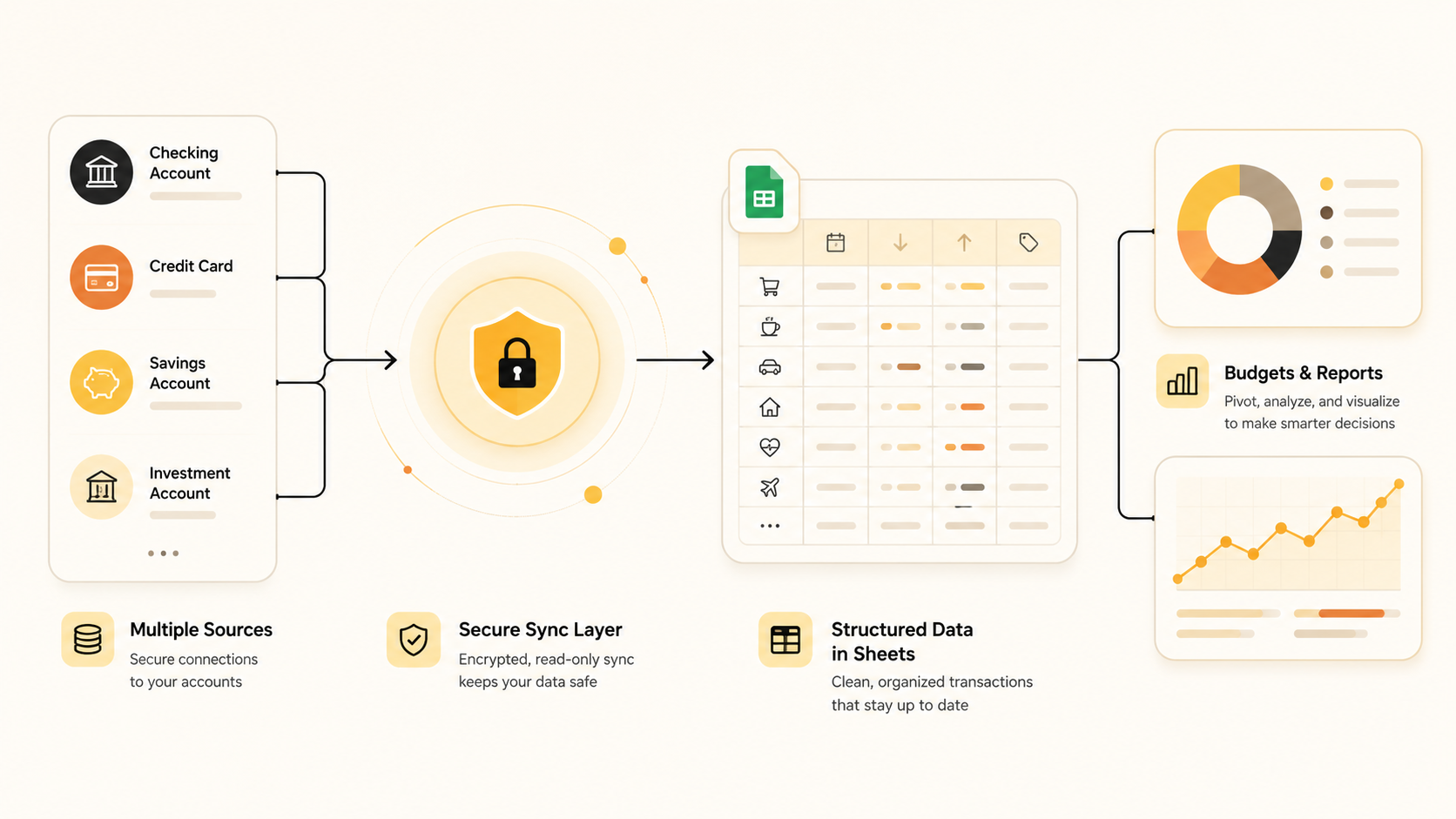
Multiple accounts need one source structure, not one blurred balance. Keep the raw transaction feed together, but preserve the account reference on every transaction.
Start with a clear workbook structure
A single workbook can work well for several accounts when each part has a defined job.
- Bank_Transactions receives the incoming rows from every connected account.
- Accounts keeps a small reference list with account name, type, owner and any labels you use in reports.
- Rules holds category mappings and labels that should be applied consistently.
- Transfers_Review surfaces transactions that may represent money moving between your own accounts.
- Reports contains your budget, cash-flow view, net-worth tracker or management dashboard.
The raw transaction tab should include the bank date, description, signed amount, currency, account reference and transaction ID. Without the account field, a combined spreadsheet can tell you what happened but not where it happened.
Why CSV imports get harder with every account
A one-account CSV import can be mildly annoying. Four account imports are a process.
You have to remember which file belongs to which account, whether each export overlaps the last one, which headers changed and whether a payment from your current account to your credit card should be treated as spending twice. That is before anyone builds a dashboard from the data.
A scheduled feed does not remove the need to review the data. It does give you a repeatable source format, so your spreadsheet can rely on the same columns and identifiers every time it refreshes.
Set up a multi-account feed in five steps
- List the accounts that belong in the workbook. Include only the accounts that should contribute to the reports. A personal savings account and a business operating account may need different categories, even if they share a spreadsheet.
- Connect supported accounts one by one. The account holder authorises each connection through the provider's consent flow. Confirm the account label before you start reporting from it.
- Map every account to the same source columns. Date, description, amount, currency, account and transaction ID are the essentials. Add a source or owner field if it helps your reports.
- Review transfers before reporting. Mark transfers between your own accounts so they do not inflate income or expenses. A card payment, savings transfer or internal move often creates two bank rows.
- Build reports from the combined table. Use the account and category columns to filter a personal budget, business cash flow, debt tracker or all-account overview without changing the original source rows.
Keep account data separate from account decisions
A feed should write the bank's version of events. Your spreadsheet can then apply your version of the business logic.
For example, you might label one account as “operating”, another as “tax reserve” and a third as “personal”. Those labels belong in the Accounts tab or a reporting rule—not in the feed-controlled account name. That way, a change in your reporting structure does not interfere with the source data.
The same principle applies to categories. Let rules suggest a category for a familiar merchant, but send uncertain rows to a review queue. The larger the account set, the more valuable that queue becomes.
Checks worth keeping in the workbook
Before trusting a report that combines accounts, make time for three quick checks:
- Does every transaction still have an account reference?
- Are internal transfers excluded from income and spending totals where appropriate?
- Has a new account, closed account or missing date range affected the period you are reporting on?
These checks are small, but they prevent the quiet errors that make an otherwise good spreadsheet feel unreliable.
Frequently asked questions
Can I combine bank accounts and credit cards in one Google Sheet?
Yes. Keep the account reference on every row, use the signed amount consistently and make transfer handling visible. Whether an account is available depends on the bank, account type and connection route.
Will a feed merge transactions from different accounts?
A well-structured feed can write transactions into one source table while preserving which account each row came from. Your formulas can then group or filter them as needed.
How do I stop transfer double-counting?
Use a transfer flag or review queue. When money moves between two of your own connected accounts, it often appears once as an outflow and once as an inflow. It should not usually be treated as new spending and new income.
One workbook, a clearer picture
The best way to sync multiple bank accounts to Google Sheets is to keep the raw data consistent, retain account identity and let the spreadsheet handle the analysis. That is much more durable than stitching together a new set of CSV exports each month.