
If Google Sheets is where you already track cash flow, spending or business finances, the best way to sync a bank account is usually the one that removes repeat data entry without forcing you to rebuild the workbook.
Google Sheets does not connect to a bank by itself. Something has to supply the transaction rows: a CSV export, code that talks to a bank-data API, or a bank-feed service that writes authorised data to the sheet on a schedule.
The practical answer is simple. Use a CSV when the update is occasional, build your own integration when you need full technical control, and use a scheduled bank feed when the same spreadsheet needs to stay current week after week.
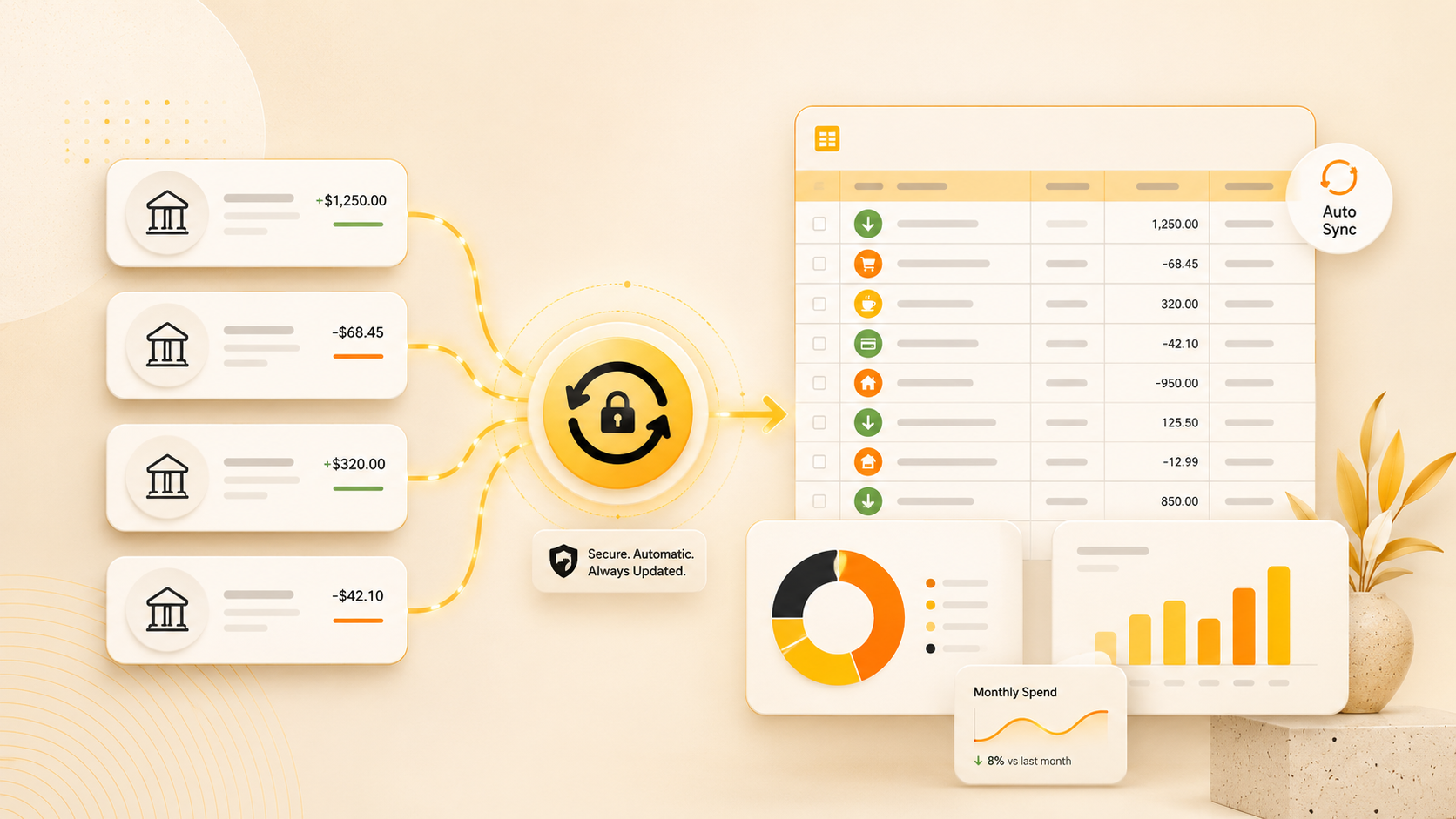
For an ongoing spreadsheet, use a scheduled bank feed as the source layer. It keeps transaction rows moving while your formulas, categories and reports remain in Google Sheets.
Choose the method that matches the job
There is no universal winner. The right route depends on how often you update the sheet, how much setup you are willing to maintain and whether the spreadsheet is a personal tracker, a business working paper or part of a wider workflow.
- CSV export: Best for a one-off import or a spreadsheet that changes only occasionally. It is free and works wherever the bank lets you download data, but someone still has to export, import, clean columns and prevent duplicate rows.
- Custom code: Best for developers who want to own every part of the workflow. Google Apps Script or a small service can write to Sheets, but you still need a bank-data provider, a secure way to handle credentials or tokens, and a plan for keeping the integration working.
- Scheduled bank feed: Best for a spreadsheet you rely on repeatedly. A service such as BankSync handles the authorised connection and sends mapped transaction data into the workbook, leaving the spreadsheet to do what it does best: formulas, review and reporting.
The key is not to confuse the data source with the spreadsheet itself. A better feed does not make the spreadsheet less flexible. It makes the source tab more reliable.
Why a source tab is the best starting point
Do not point a bank feed at a dashboard cell or a monthly total. Give it a dedicated tab—something like Bank_Transactions—and let it be a plain, append-oriented table.
Keep stable fields such as:
- transaction date;
- description from the bank;
- signed amount;
- currency;
- account name or account ID; and
- transaction ID.
Then build the useful work around the data. Your category rules, notes, budget totals, cash-flow charts and exception checks should sit in separate columns or tabs. That way, a fresh sync can add source rows without overwriting decisions you have already made.
A straightforward BankSync setup
- Start with the worksheet that already works. Keep the existing budget, cash-flow tracker or business workbook. Add a dedicated source tab rather than starting from a blank template.
- Connect the relevant supported bank account. The account holder authorises the connection through the provider's normal consent process.
- Map fields into stable columns. Send the date, description, amount, account and transaction ID to the columns your workbook expects.
- Check the first history load. Confirm the available date range, account identity, transfers and any overlapping rows before building reports on top of it.
- Schedule and review. Let the feed keep the source table updated, then make a short routine for uncategorised transactions, unusual values and missing supporting documents.
This is lighter than rebuilding a workbook around a specific template. It lets you keep the Google Sheets logic your team already understands.
What an automatic feed does not do
A bank feed reduces collection work. It does not decide whether a payment is personal or business, whether two internal transfers should cancel out, or how a transaction should be categorised for accounting or tax purposes.
Plan for a review column or queue. That is where you deal with unfamiliar merchants, refunds, cash activity, split transactions and anything that needs a receipt or explanation. The goal is not to remove judgement—it is to stop spending judgement on repeated file imports.
Frequently asked questions
Can I connect my bank to Google Sheets directly?
Google Sheets does not log in to a bank directly. You need a CSV export, your own integration or a bank-feed service between the bank and the spreadsheet.
Will every bank account be available?
Availability varies by institution, account type and connection route. Check the bank you need before making it part of a critical workflow.
Should I use a feed for a small spreadsheet?
If the spreadsheet is updated often enough that CSV imports feel like a chore, a feed is usually worthwhile. If you only update it once or twice a year, manual import may remain the simplest option.
Keep your spreadsheet. Remove the maintenance.
The best way to sync a bank account to Google Sheets is not to replace the spreadsheet. It is to give the spreadsheet a reliable transaction source, keep the reporting logic where it is, and make manual CSV exports the exception rather than the routine.